> ## Documentation Index
> Fetch the complete documentation index at: https://docs.growthbook.io/llms.txt
> Use this file to discover all available pages before exploring further.
# Legacy Slack webhooks
> Send GrowthBook alerts to Slack with an incoming webhook, manage legacy Slack integrations, and move them to the GrowthBook Slack app.
Before the [GrowthBook Slack app](/integrations/slack), Slack alerts were sent through Slack incoming webhooks. These connections still work, but they only send plain text and each one is tied to a single channel.
We recommend the Slack app for new setups. Use this page if you need to keep an existing webhook running, or if you can't install apps in your Slack workspace.
## Move to the Slack app
1. [Connect your Slack workspace](/integrations/slack#connect-your-slack-workspace) and [add the same channels](/integrations/slack#add-a-channel).
2. Set up each channel's [events and filters](/integrations/slack#choose-what-each-channel-receives) to match your old webhook.
3. [Send a test notification](/integrations/slack#send-a-test-notification) to each channel.
4. Delete the old connection so the channel doesn't get duplicate notifications:
* **Legacy Slack Integrations:** at the bottom of **Settings → Slack**.
* **Event webhooks with the Slack payload:** in [Settings → Webhooks](https://app.growthbook.io/settings/webhooks).
Old connections aren't converted automatically.
## Legacy Slack Integrations
If your organization set up Slack alerts with an App ID, signing key, and incoming webhook URL, those connections are listed under **Legacy Slack Integrations** at the bottom of **Settings → Slack**. You can edit or delete them there, but you can't create new ones. Use the Slack app or an event webhook instead.
## Send alerts with an event webhook
You can post GrowthBook events to a Slack channel with an [event webhook](/app/webhooks/event-webhooks) that uses the Slack payload. You don't need to install the GrowthBook app for this, but messages are always plain text.
### Create a Slack app
You need administrative privileges for your Slack workspace to manage apps.
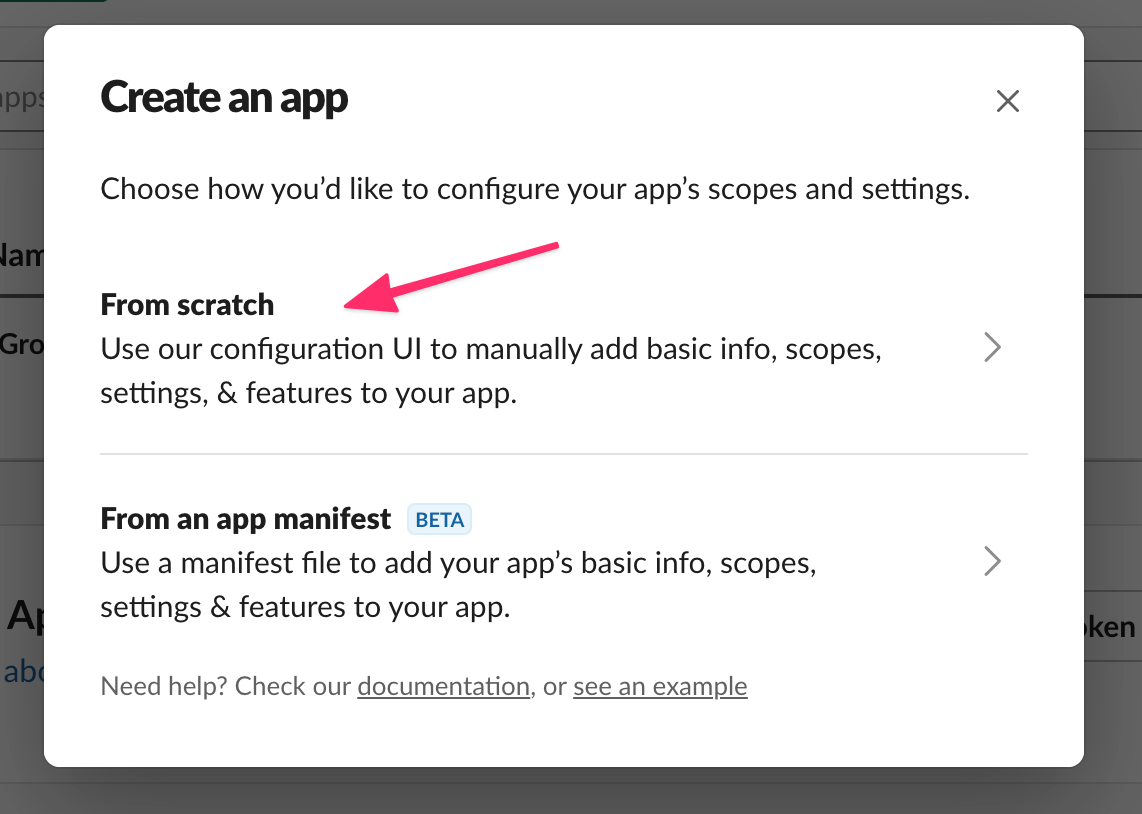
Go to [Slack's new app page](https://api.slack.com/apps?new_app=1) and create a new app.
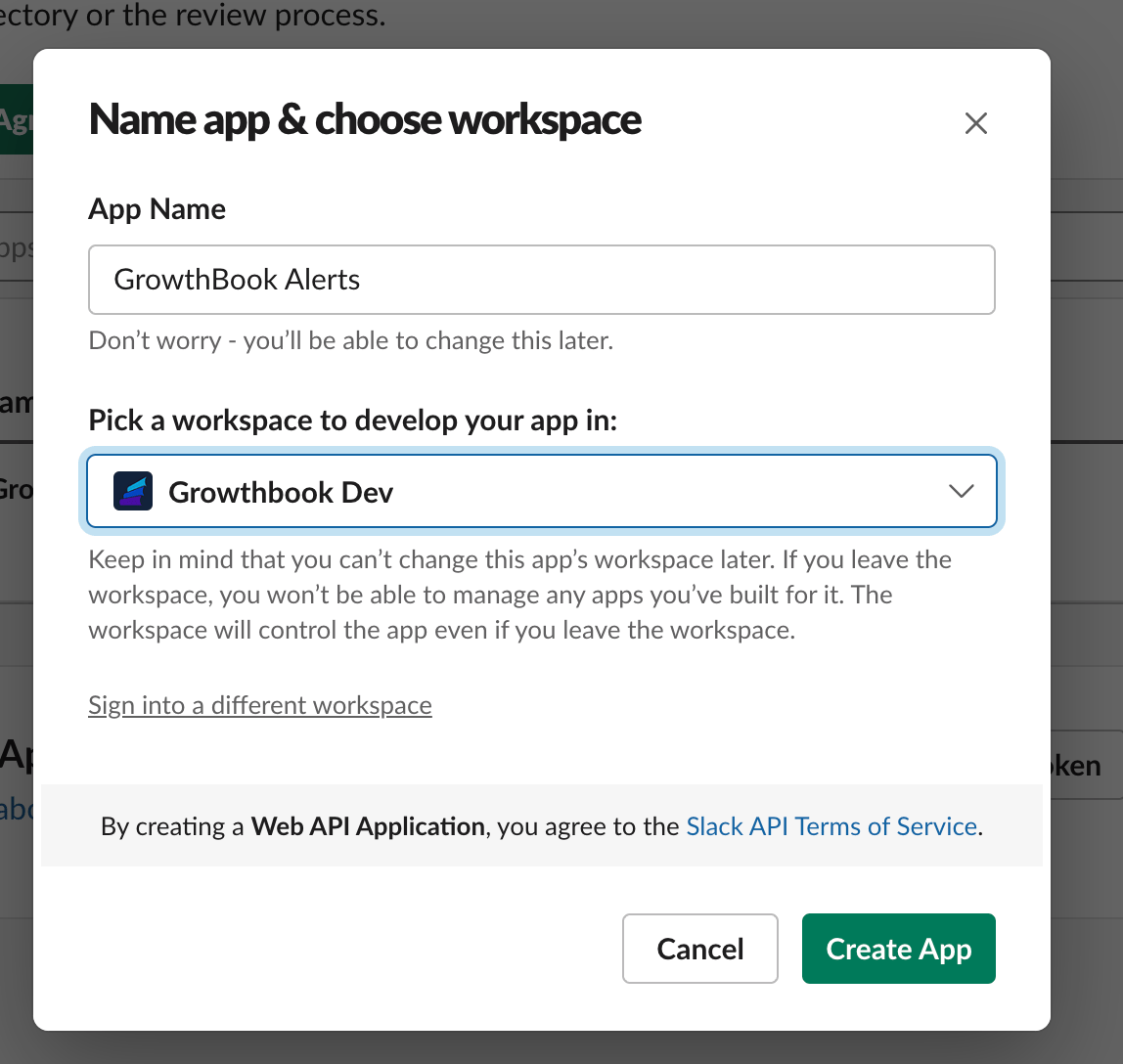
 Name the app and choose the workspace. In this example, the app is named GrowthBook Alerts in the GrowthBook Dev workspace.
 ### Create an incoming webhook
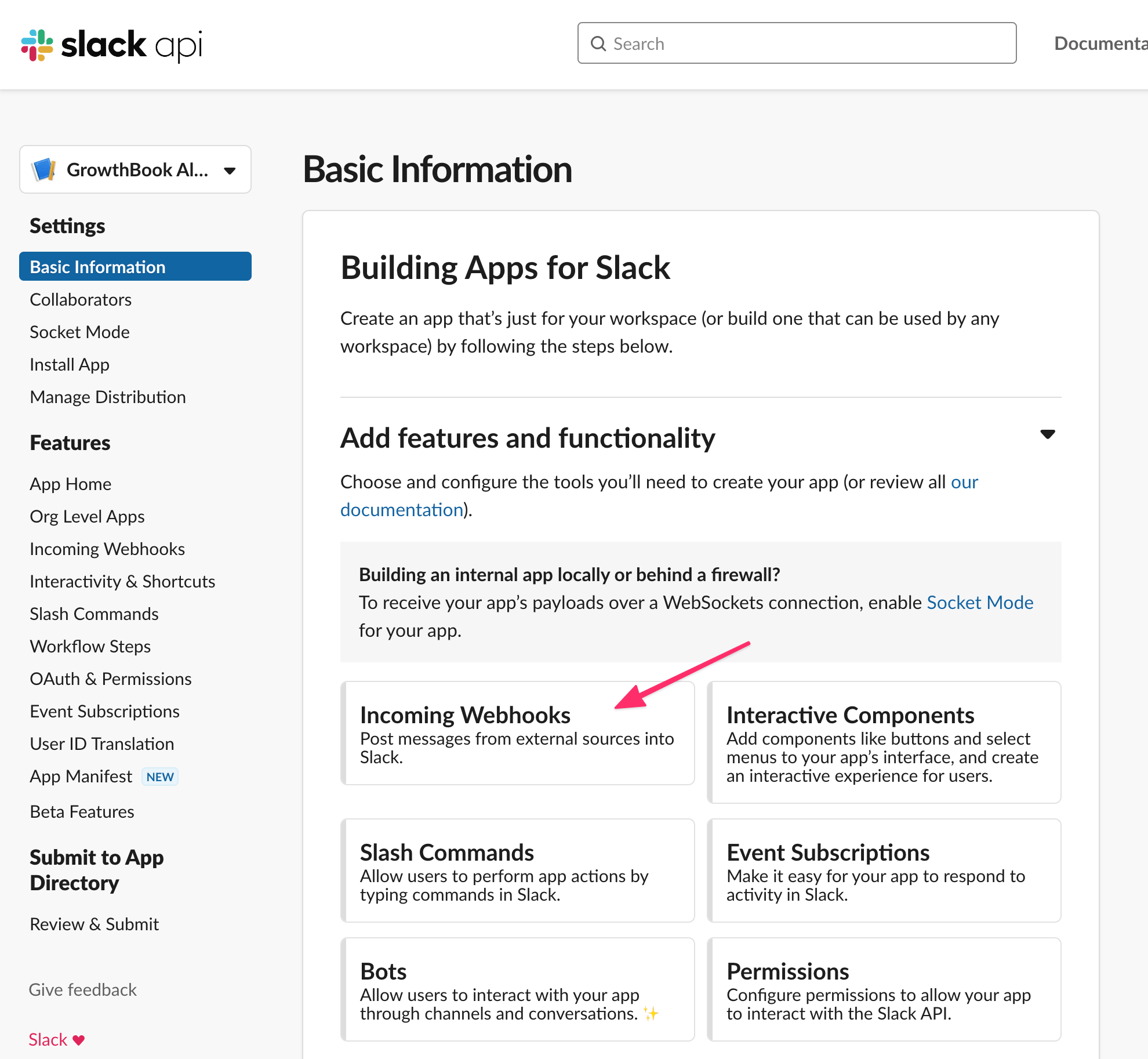
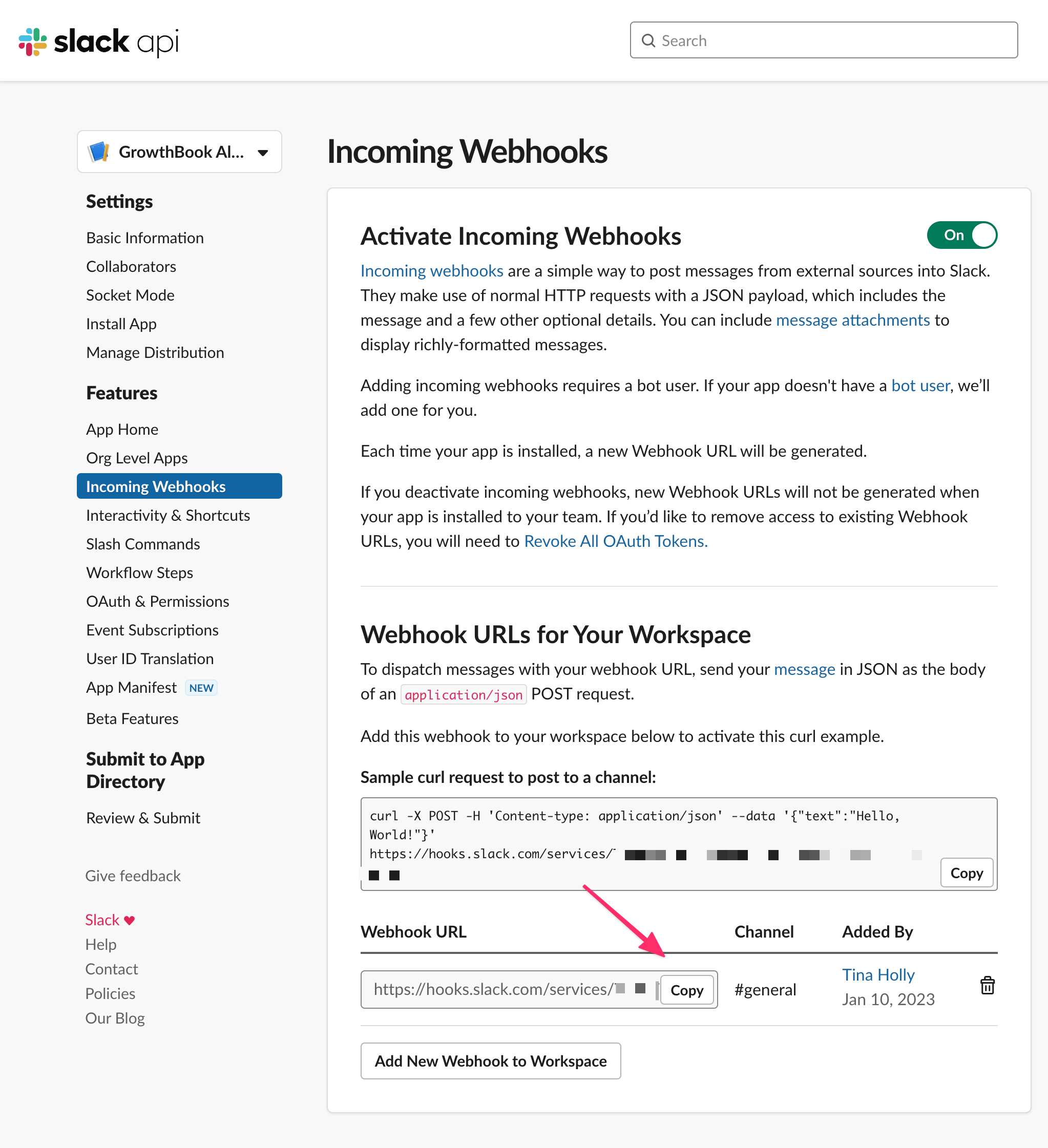
Under the **Basic Information** tab of your app, click **Incoming Webhooks**.
### Create an incoming webhook
Under the **Basic Information** tab of your app, click **Incoming Webhooks**.
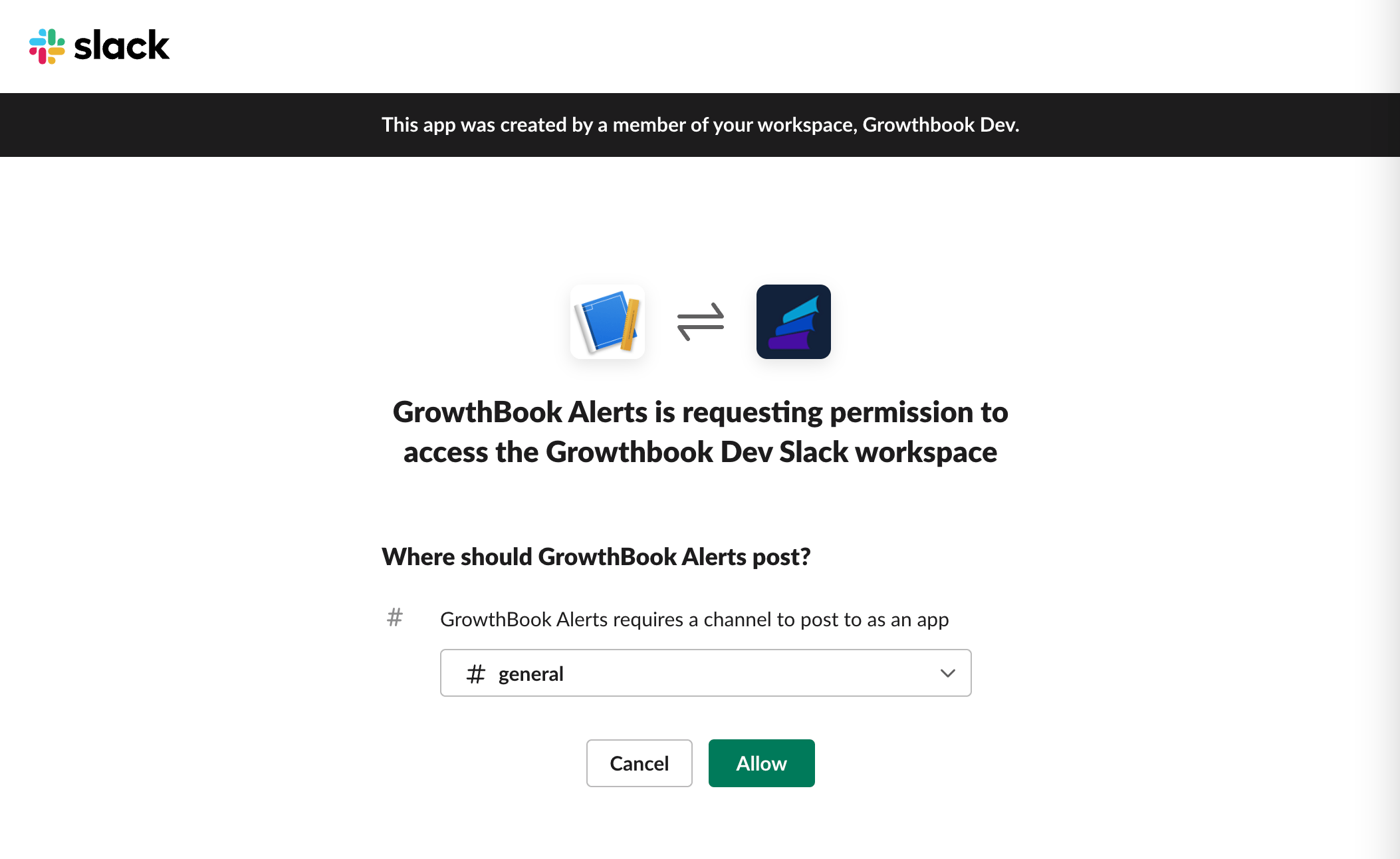
 Click **Add New Webhook to Workspace** at the bottom of the page. Slack asks you to install the app into your workspace. Choose the channel you'd like to receive notifications in.
 When you finish, Slack shows a webhook URL. Copy it for the next step.
 ### Add the webhook to GrowthBook
Go to [Settings → Webhooks](https://app.growthbook.io/settings/webhooks) in GrowthBook. You need permission to manage webhooks to see this page.
Click **Create an Event Webhook**.
### Add the webhook to GrowthBook
Go to [Settings → Webhooks](https://app.growthbook.io/settings/webhooks) in GrowthBook. You need permission to manage webhooks to see this page.
Click **Create an Event Webhook**.
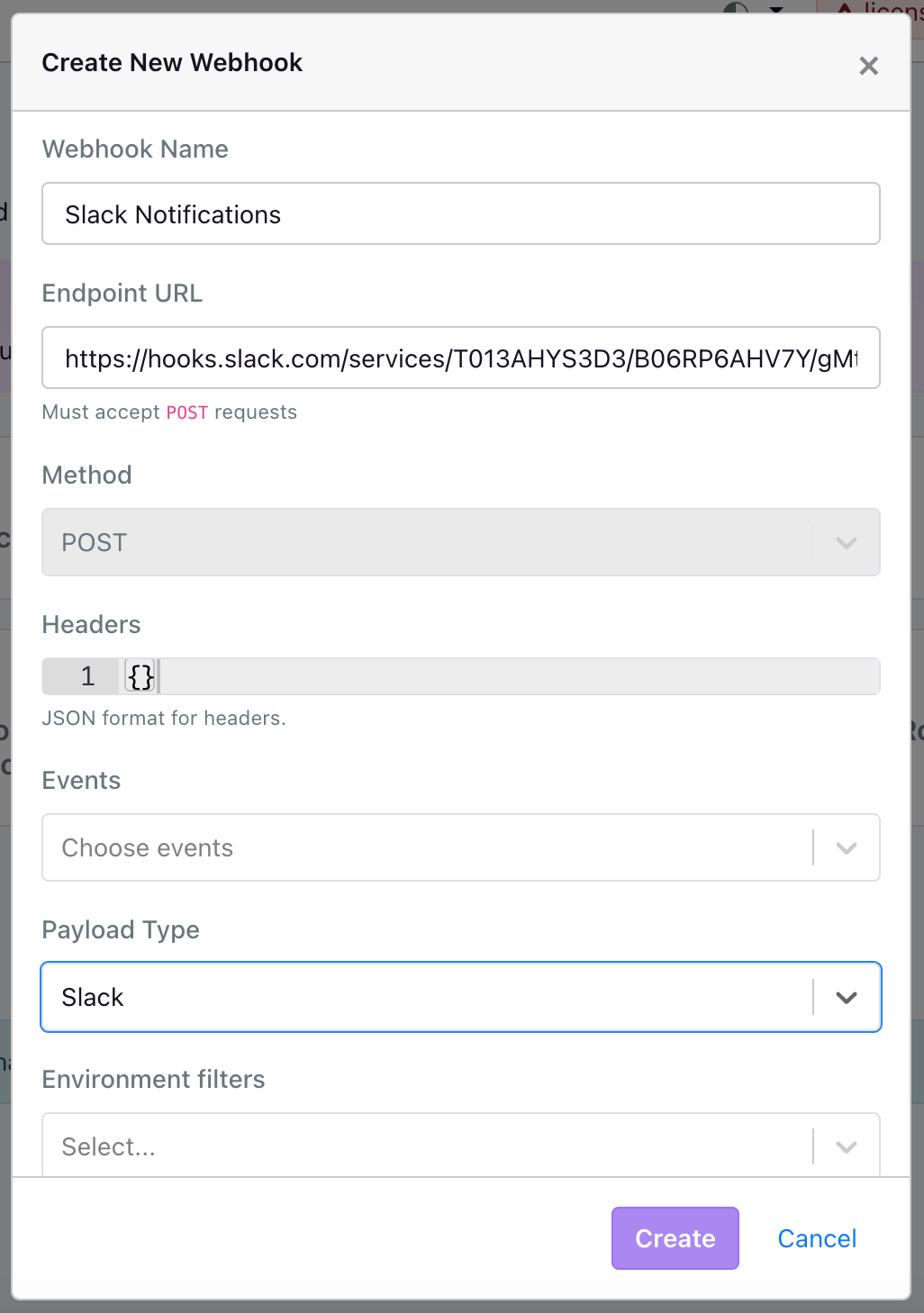 Fill in these fields:
* **Name:** helps you tell webhooks apart. It also shows in the context text of each alert.
* **Endpoint URL:** the webhook URL from your Slack app.
* **Payload:** select `Slack`.
* **Event filters:** optional. For example, choose `feature.deleted` to only hear about deleted features. Leave blank for all events.
* **Environment filters:** optional. For example, choose `production` to only hear about production. Leave blank for all environments.
* **Project filters:** optional. Leave blank for all projects.
* **Tag filters:** optional. Leave blank for all tags.
Click **Create** to save. You can edit these fields later.
Fill in these fields:
* **Name:** helps you tell webhooks apart. It also shows in the context text of each alert.
* **Endpoint URL:** the webhook URL from your Slack app.
* **Payload:** select `Slack`.
* **Event filters:** optional. For example, choose `feature.deleted` to only hear about deleted features. Leave blank for all events.
* **Environment filters:** optional. For example, choose `production` to only hear about production. Leave blank for all environments.
* **Project filters:** optional. Leave blank for all projects.
* **Tag filters:** optional. Leave blank for all tags.
Click **Create** to save. You can edit these fields later.
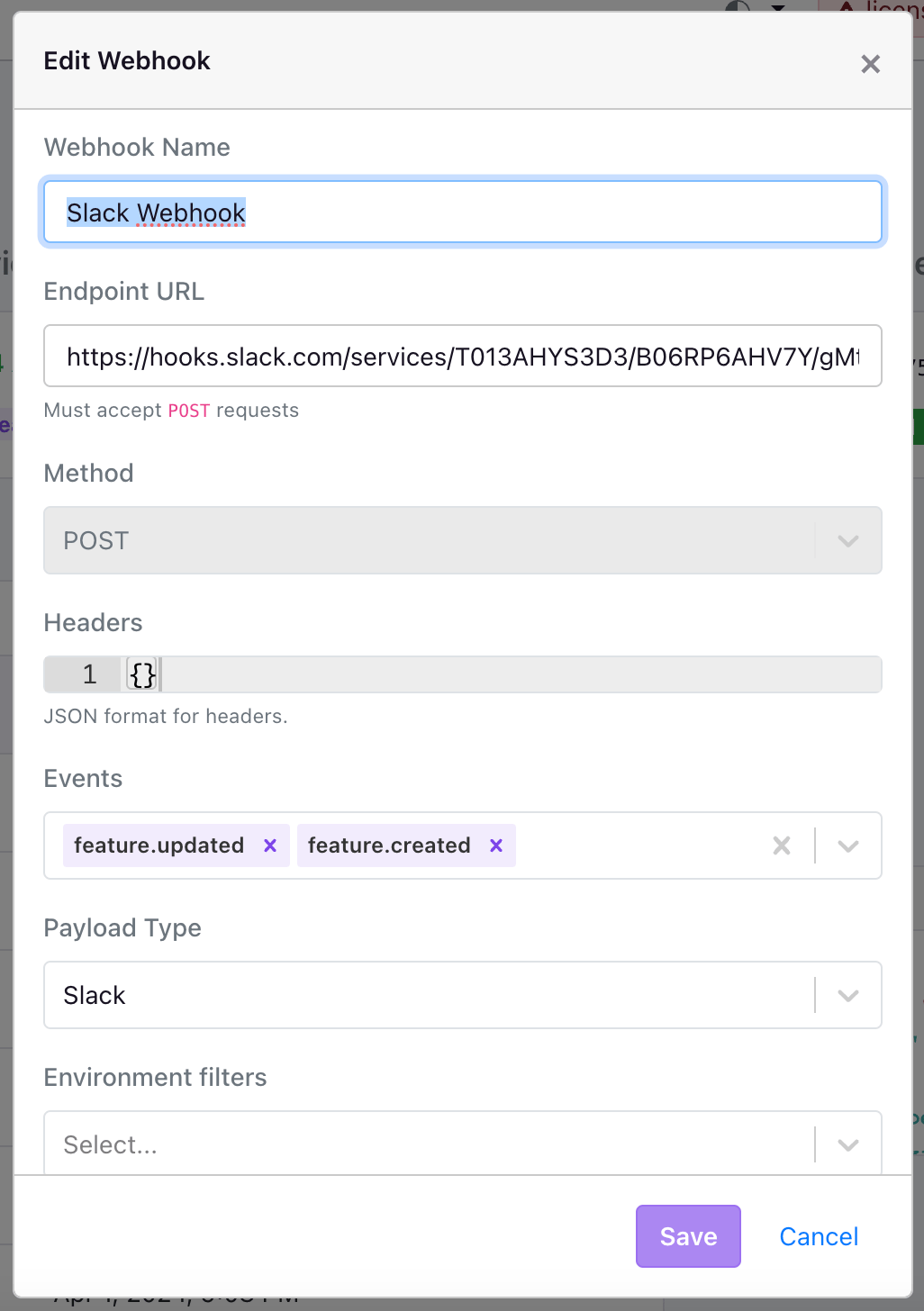 To alert another channel, add another incoming webhook in Slack, then create another event webhook in GrowthBook with the new URL.
### Test your alerts
Click **Test** on the webhook's settings page to send a test notification.
Then perform one of the actions you're filtering for. If you didn't add event filters, the quickest test is to create a test feature (and delete it afterward), or toggle an environment on or off for an existing feature.
To alert another channel, add another incoming webhook in Slack, then create another event webhook in GrowthBook with the new URL.
### Test your alerts
Click **Test** on the webhook's settings page to send a test notification.
Then perform one of the actions you're filtering for. If you didn't add event filters, the quickest test is to create a test feature (and delete it afterward), or toggle an environment on or off for an existing feature.