> ## Documentation Index
> Fetch the complete documentation index at: https://docs.growthbook.io/llms.txt
> Use this file to discover all available pages before exploring further.
# Setting Up Amazon Redshift as a Data Source
> Connect Amazon Redshift to GrowthBook with a read-only user, security group access for the Cloud IP, and connection details.
Connecting Amazon Redshift to GrowthBook allows you to analyze experiment data and metrics directly from your data warehouse.
**This guide focuses on Redshift Serverless, but the steps are similar for provisioned Redshift instances.**
## 1: Find Connection Details
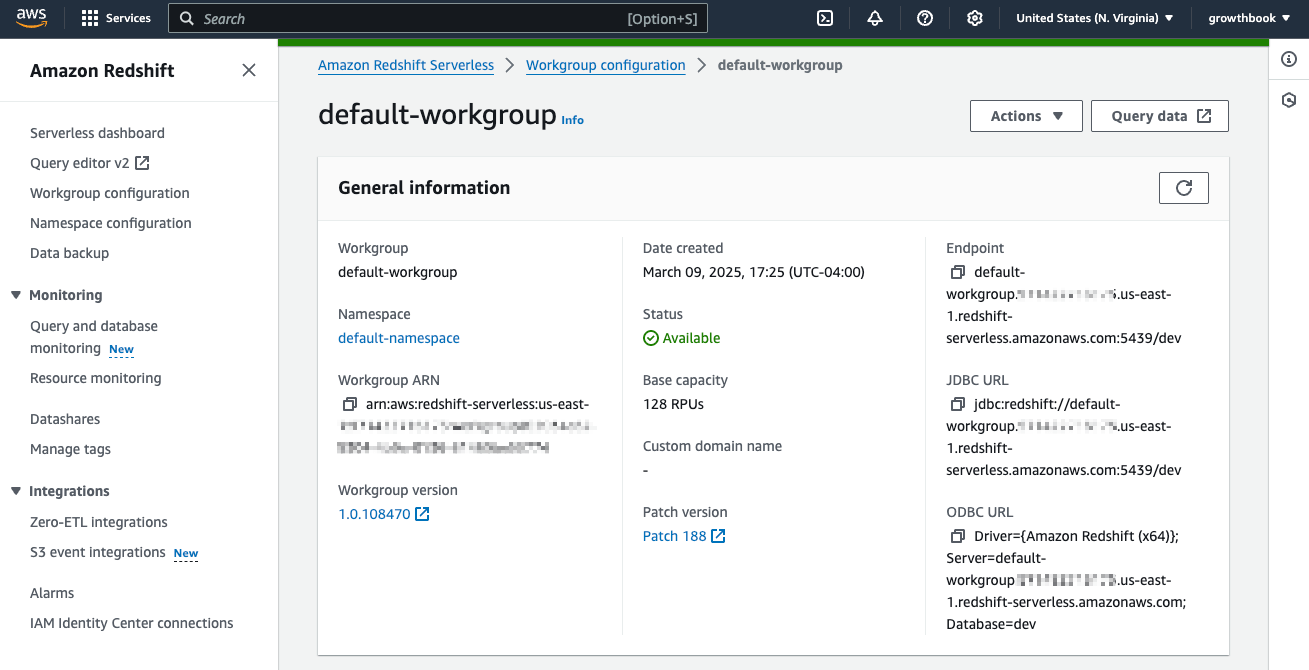
1. In the **AWS Management Console**, navigate to **Amazon Redshift** → **Serverless**.
2. Click on **Workgroup configuration**, select your workgroup.
3. Under **General information**, locate the **Endpoint**, which looks like this:
`default-workgroup.1234567890.us-east-1.redshift-serverless.amazonaws.com:5439/dev`
This string comprises the following parts:
* Host: `default-workgroup.1234567890.us-east-1.redshift-serverless.amazonaws.com`
* Port: `5439`
* Database Name: `dev`
 ## 2: Configure Security settings
1. Go to **AWS Console** → **Amazon Redshift** → **Serverless** → **Workgroups**.
2. Click on your Workgroup and scroll to **Network and Security**.
3. Click **Edit** and check **Turn on Publicly accessible**.
## 2: Configure Security settings
1. Go to **AWS Console** → **Amazon Redshift** → **Serverless** → **Workgroups**.
2. Click on your Workgroup and scroll to **Network and Security**.
3. Click **Edit** and check **Turn on Publicly accessible**.
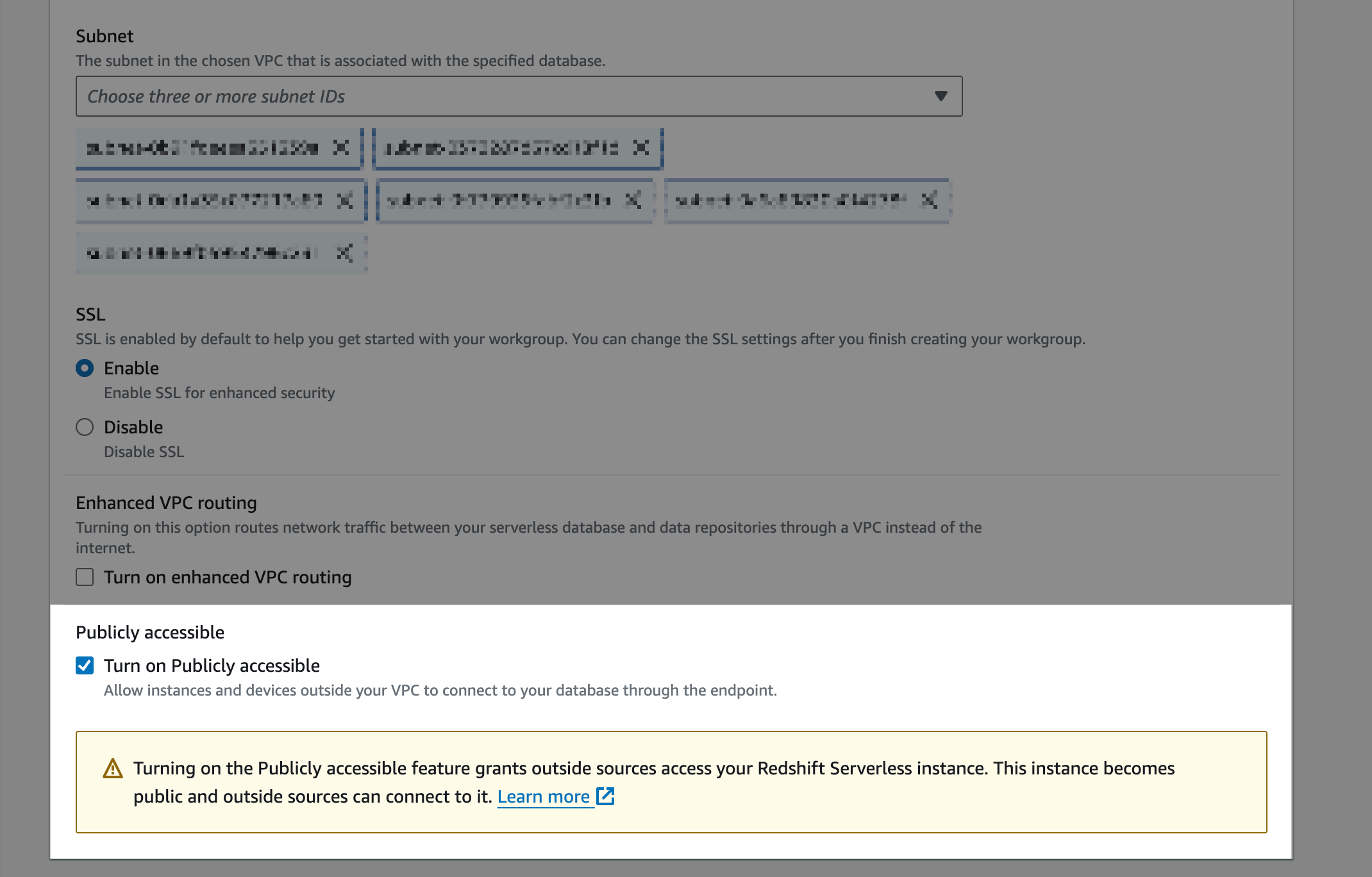 4. Click **Save Changes**.
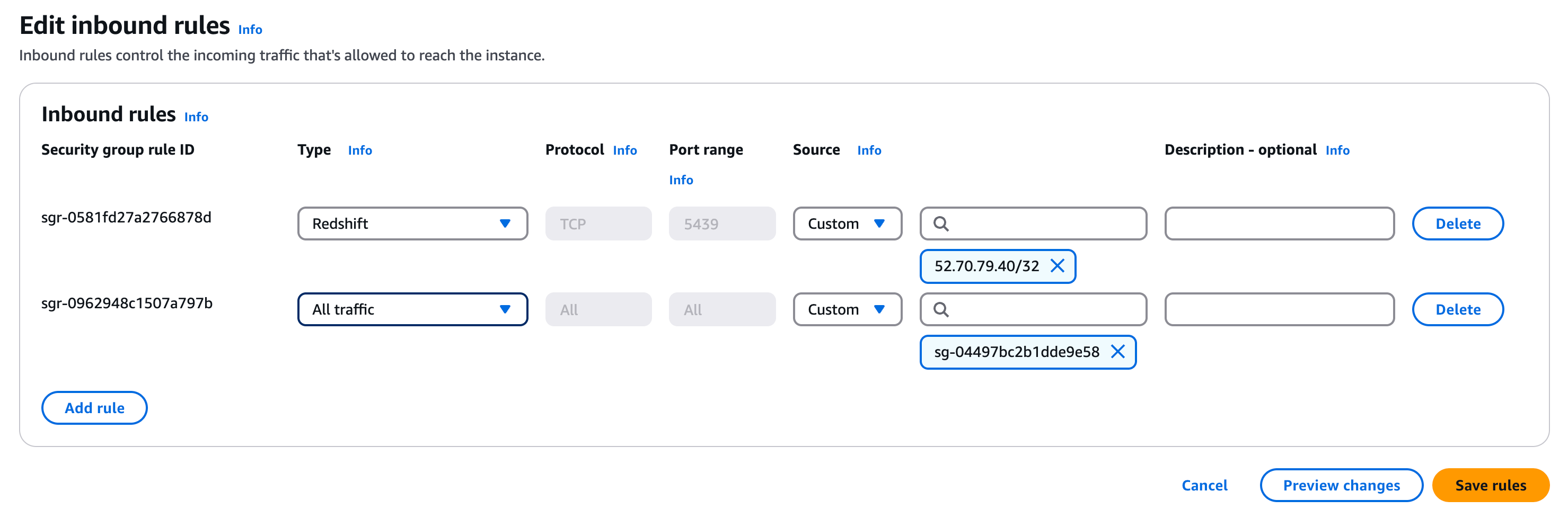
5. Click on the **VPC security group** link.
6. Select the Security Group matching your Workgroup.
7. Edit **Inbound Rules**:
* Protocol: TCP
* Port: 5439
* Source: 52.70.79.40/32 (GrowthBook’s IP)
8. Click **Save Changes**.
4. Click **Save Changes**.
5. Click on the **VPC security group** link.
6. Select the Security Group matching your Workgroup.
7. Edit **Inbound Rules**:
* Protocol: TCP
* Port: 5439
* Source: 52.70.79.40/32 (GrowthBook’s IP)
8. Click **Save Changes**.
 **Enabling public access makes your database accessible from the internet.**
Ensure your security group settings are restrictive.
## 3: Create a Read-Only User
To prevent unauthorized changes, use a dedicated read-only user for GrowthBook.
1. Open AWS Query Editor or your preferred SQL client.
2. Run the following:
```sql theme={null}
CREATE USER growthbook_user WITH PASSWORD 'securepassword';
GRANT SELECT ON ALL TABLES IN SCHEMA public TO growthbook_user;
ALTER DEFAULT PRIVILEGES IN SCHEMA public GRANT SELECT ON TABLES TO growthbook_user;
```
**If your data is in a different schema (e.g., analytics), replace public with your schema name.**
3. Use this user when connecting GrowthBook.
## 4: Add Redshift as a Data Source in GrowthBook
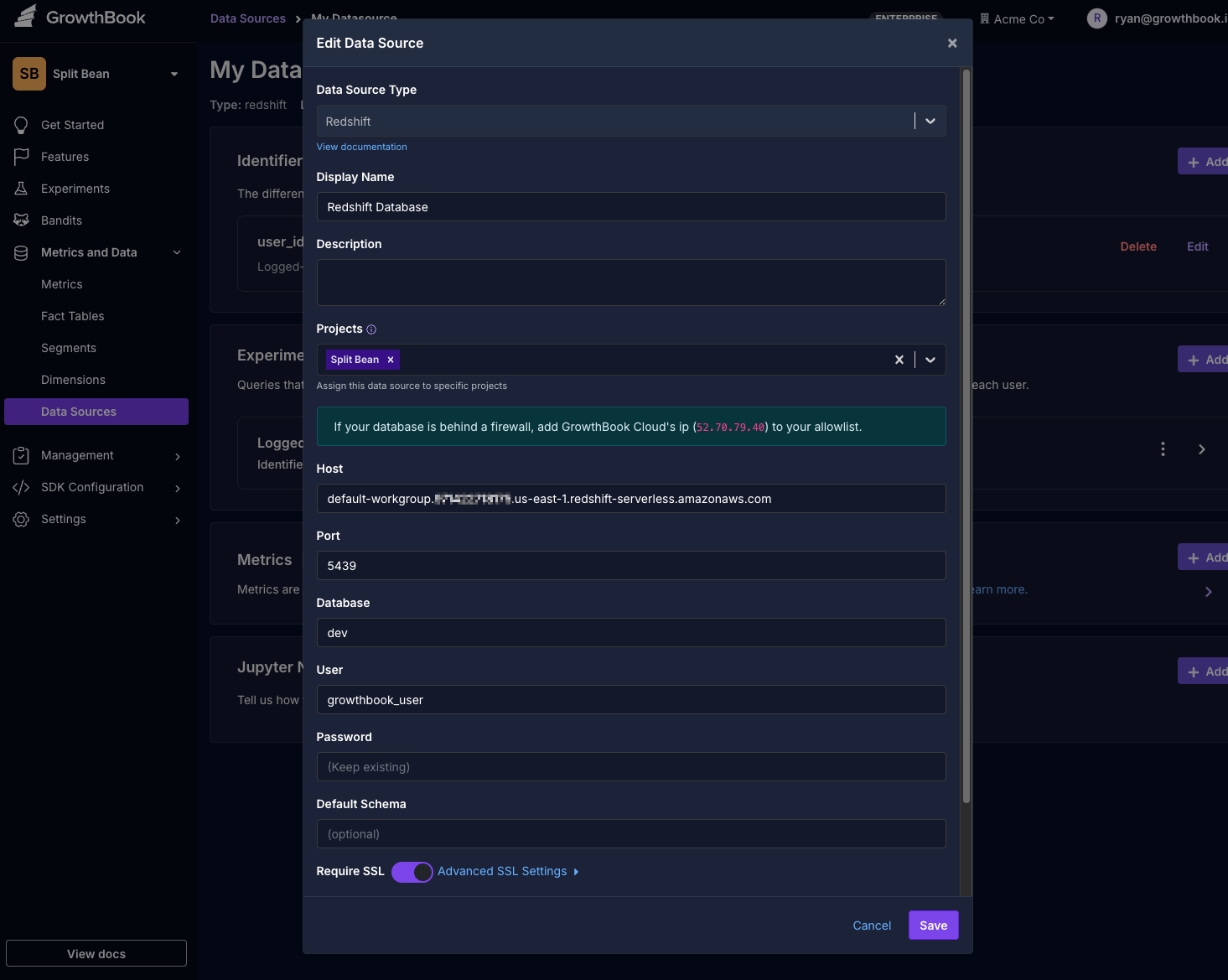
1. In GrowthBook, go to **Settings** → **Data Sources.**
2. **Click Add Data Source** and choose **Redshift**.
3. Enter the details from Step 1:
* Host: (Your Workgroup Endpoint for Serverless or Cluster Endpoint for Provisioned)
* Port: `5439`
* Database: (Your database name, e.g., `dev`)
* User: `growthbook_user`
* Password: (Your secure password)
* Require SSL: Recommended but may depend on your Redshift setup.
4. Click **Next** to test the connection.
**Enabling public access makes your database accessible from the internet.**
Ensure your security group settings are restrictive.
## 3: Create a Read-Only User
To prevent unauthorized changes, use a dedicated read-only user for GrowthBook.
1. Open AWS Query Editor or your preferred SQL client.
2. Run the following:
```sql theme={null}
CREATE USER growthbook_user WITH PASSWORD 'securepassword';
GRANT SELECT ON ALL TABLES IN SCHEMA public TO growthbook_user;
ALTER DEFAULT PRIVILEGES IN SCHEMA public GRANT SELECT ON TABLES TO growthbook_user;
```
**If your data is in a different schema (e.g., analytics), replace public with your schema name.**
3. Use this user when connecting GrowthBook.
## 4: Add Redshift as a Data Source in GrowthBook
1. In GrowthBook, go to **Settings** → **Data Sources.**
2. **Click Add Data Source** and choose **Redshift**.
3. Enter the details from Step 1:
* Host: (Your Workgroup Endpoint for Serverless or Cluster Endpoint for Provisioned)
* Port: `5439`
* Database: (Your database name, e.g., `dev`)
* User: `growthbook_user`
* Password: (Your secure password)
* Require SSL: Recommended but may depend on your Redshift setup.
4. Click **Next** to test the connection.
 🚀 Now, GrowthBook can securely query your Redshift database!