

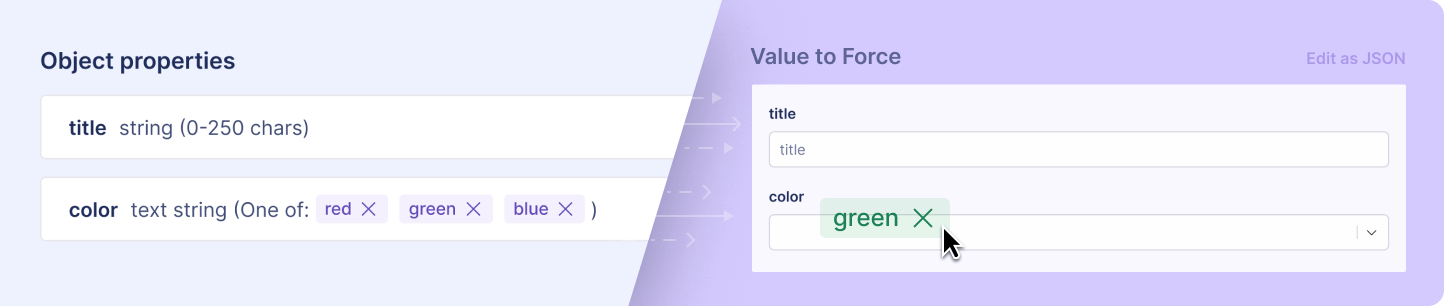
Why Validate?
When you’re using GrowthBook for remote evaluation, your JSON feature flag values are consumed directly by your application. There’s no compiler or type checker between the flag editor and your users. A missing key, a misspelled property, or the wrong type can cause broken UIs, crashed clients, or silent misbehavior. Adding a schema means:- Invalid values can’t be saved and mistakes are caught before publishing.
- Editors see the exact shape of the data they need to provide.
- Consumers of the flag can trust the structure.
Enabling Validation
Open a JSON, string, or number feature flag, go to its Validation tab, and find the Schema Validation section. Click Enable to open the schema editor. You can switch validation on or off at any time, and edit the schema later from the same section.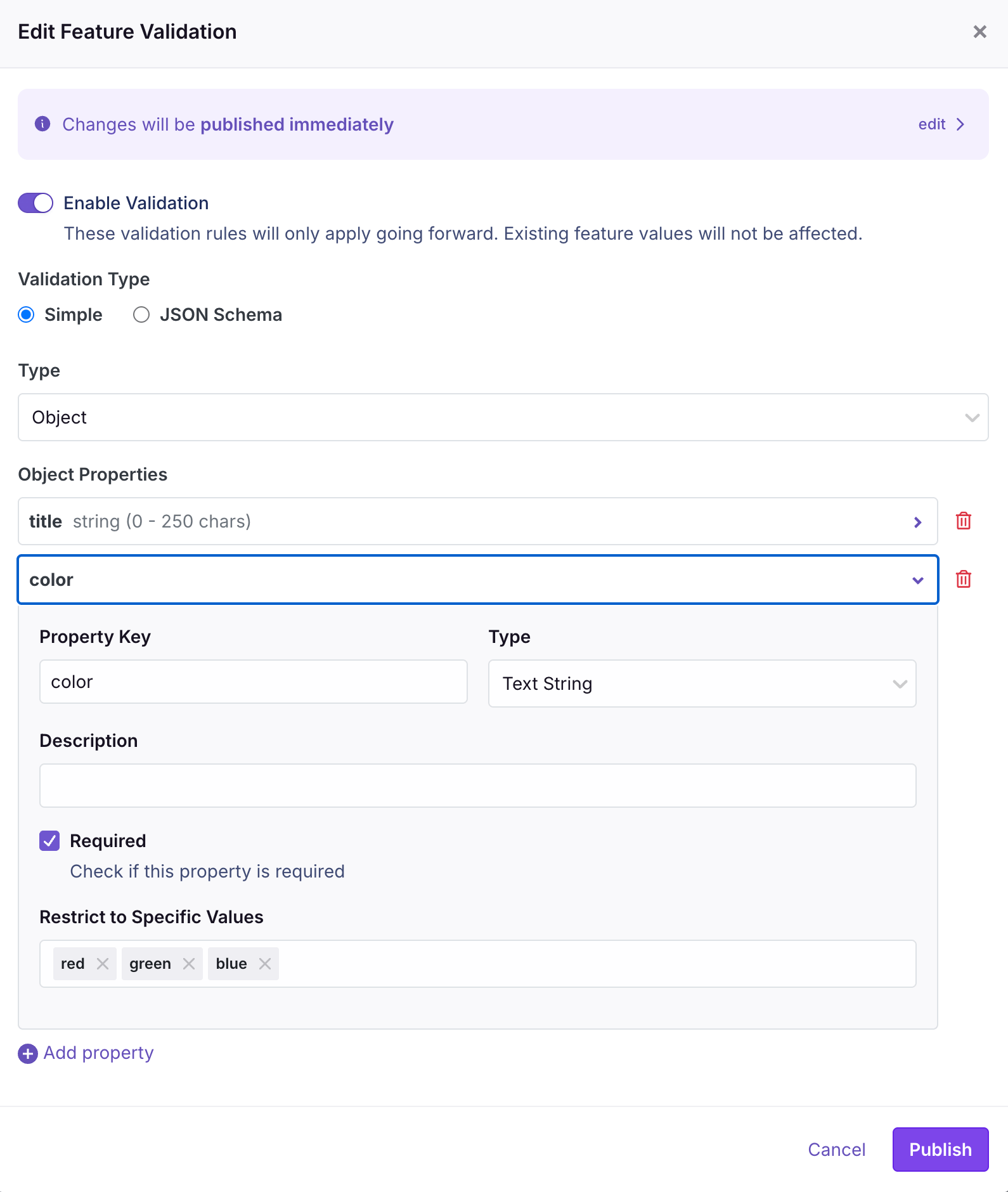
Two Ways to Define a Schema
GrowthBook supports two modes for defining your schema.Simple Schema Builder
For most configuration flags, a full JSON Schema is more than you need. The Simple Schema Builder is a UI-driven editor for common object shapes, so you don’t have to write any schema by hand. Choose a root type:- Object - a fixed set of named properties
- Array of Objects - a list of objects, all matching the same shape
- Primitive Value - a single string, number, or boolean
- Array of Primitive Values - a list of primitives
- Property Key and Description
- Type - Text String, Integer, Float, or Boolean
- Required (for object properties)
- Restrict to Specific Values - limit the property to an enum of allowed values
- Min / Max - bound the length of a string or the range of a number
Raw JSON Schema
When you need more expressiveness than the Simple Builder offers - nested objects, conditional schemas, regex patterns, references, and so on - switch to raw JSON Schema mode and paste in a full JSON Schema document. Anything a standard JSON Schema validator accepts will work here. For string and number flags, the schema’s top-leveltype must match the flag — string for string flags, number or integer for number flags.
The Editing Experience
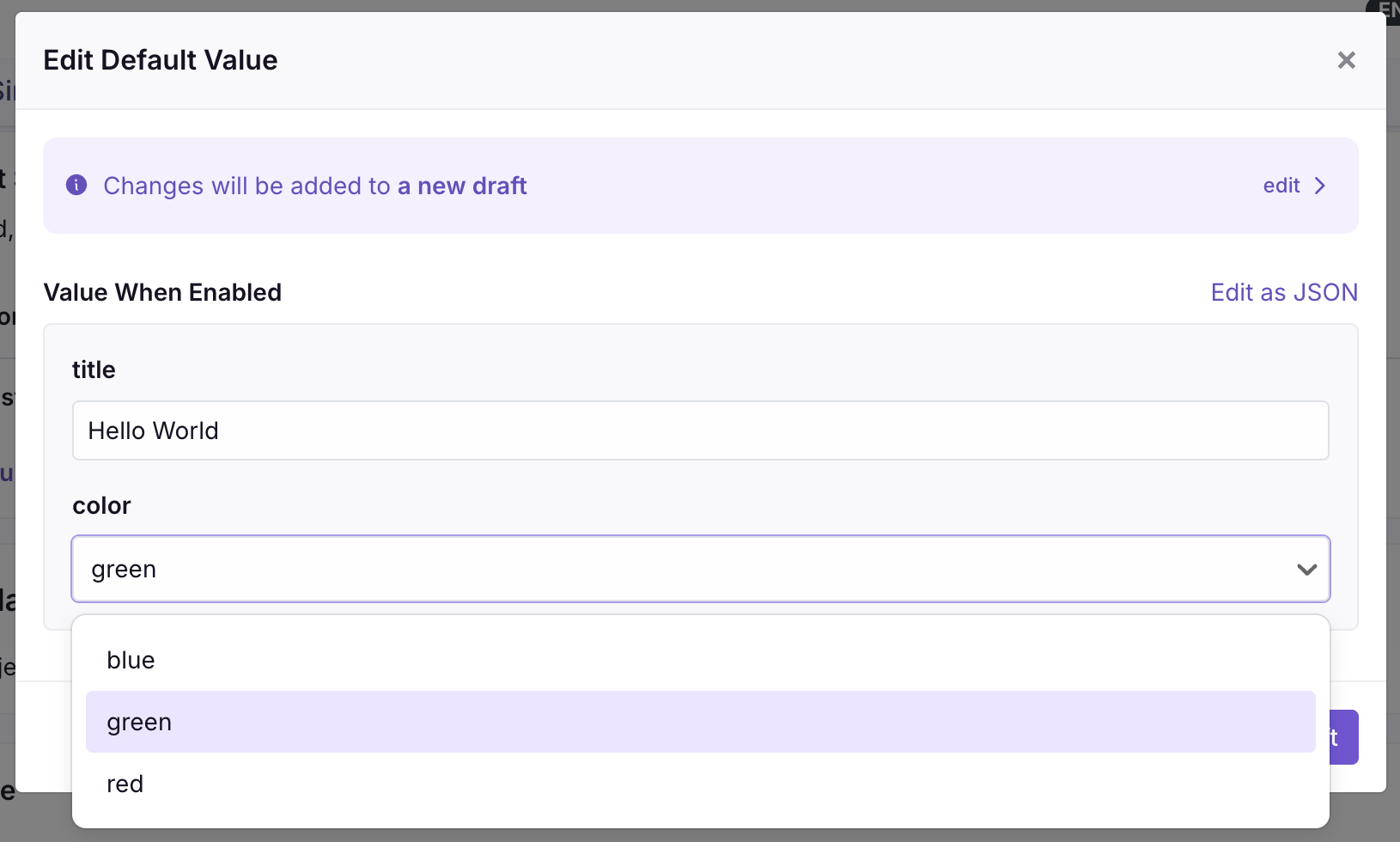
When validation is enabled with a Simple Schema, GrowthBook replaces the raw JSON textarea with a generated form. Instead of editing a JSON blob, editors get a dedicated input for each property:- Objects render as a form with one field per property.
- Arrays of objects render as a table - add and remove rows with buttons.
- Primitives render as the appropriate input type (text, number, checkbox).
- Enums render as a dropdown or multi-select with the allowed values.
Validation Errors
When you try to save a value that doesn’t match the schema, GrowthBook shows an inline error with the specific reasons it failed - which property is missing, which value is out of range, which field has the wrong type. Fix the issues and save again. Invalid values can’t be published. The API’sskipSchemaValidation option bypasses schema checks, but values must still be valid for the Feature Flag’s value type. JSON values that GrowthBook can repair (for example, objects with unquoted keys) are saved as valid JSON. Values that cannot be parsed or repaired are rejected, including default values and rule variations. The JSON literal null is a valid value unless your schema disallows it.
Existing stored values are preserved when they are carried forward unchanged. Creating an empty draft, changing metadata, or toggling a Feature Flag does not require repairing legacy values first. New or changed JSON values must still pass type validation.
Related
- Feature Flag Basics — overview of the JSON flag type
- Configs — reuse one typed, validated schema (and value) across many JSON flags instead of defining a schema per flag (Enterprise)
- Custom Hooks — when you need more validation control than a schema provides, run custom server-side validation logic (self-hosted Enterprise)
- Publishing & Approval Flows — combine schema validation with required approvals for an extra layer of safety