

Drafts and Publishing
When you change a feature’s definition (e.g., the default value or rules), GrowthBook automatically creates a new draft revision. This draft is unpublished and only visible within the GrowthBook UI, not to your users. Continue adding changes to the draft, and when you’re ready, publish them all at once with an optional commit message.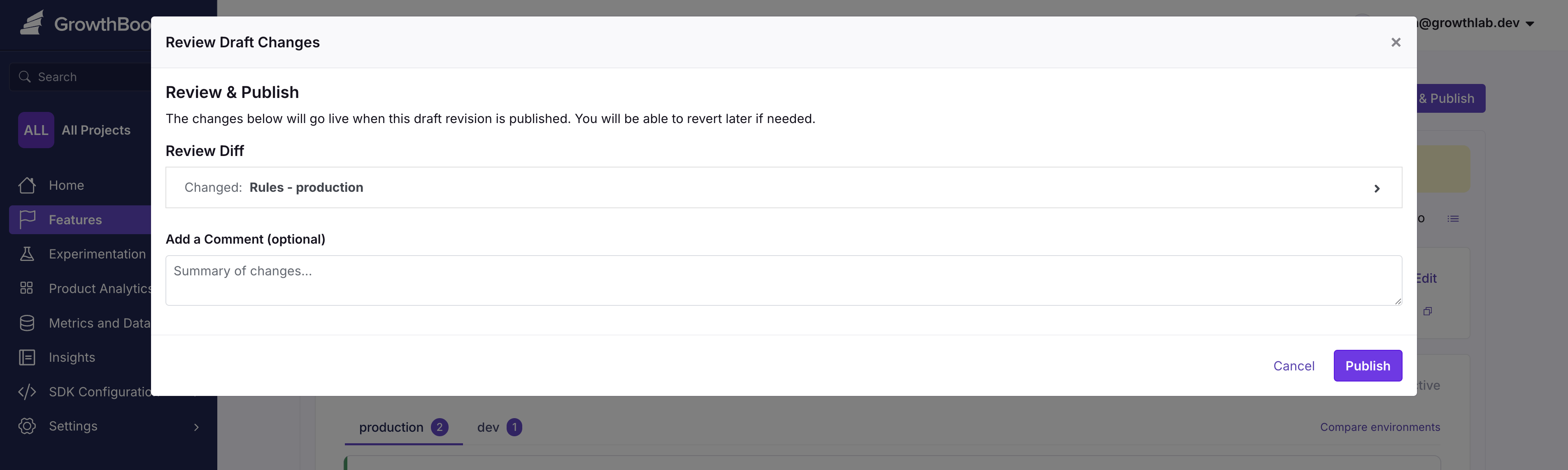
Revisions
Once published, a revision becomes locked and can no longer be changed. To undo changes and revert to a previous state, use the Revision dropdown to select the version you want to revert to, then click Revert. You can review the changes that will be applied before submitting.
Merge Conflicts
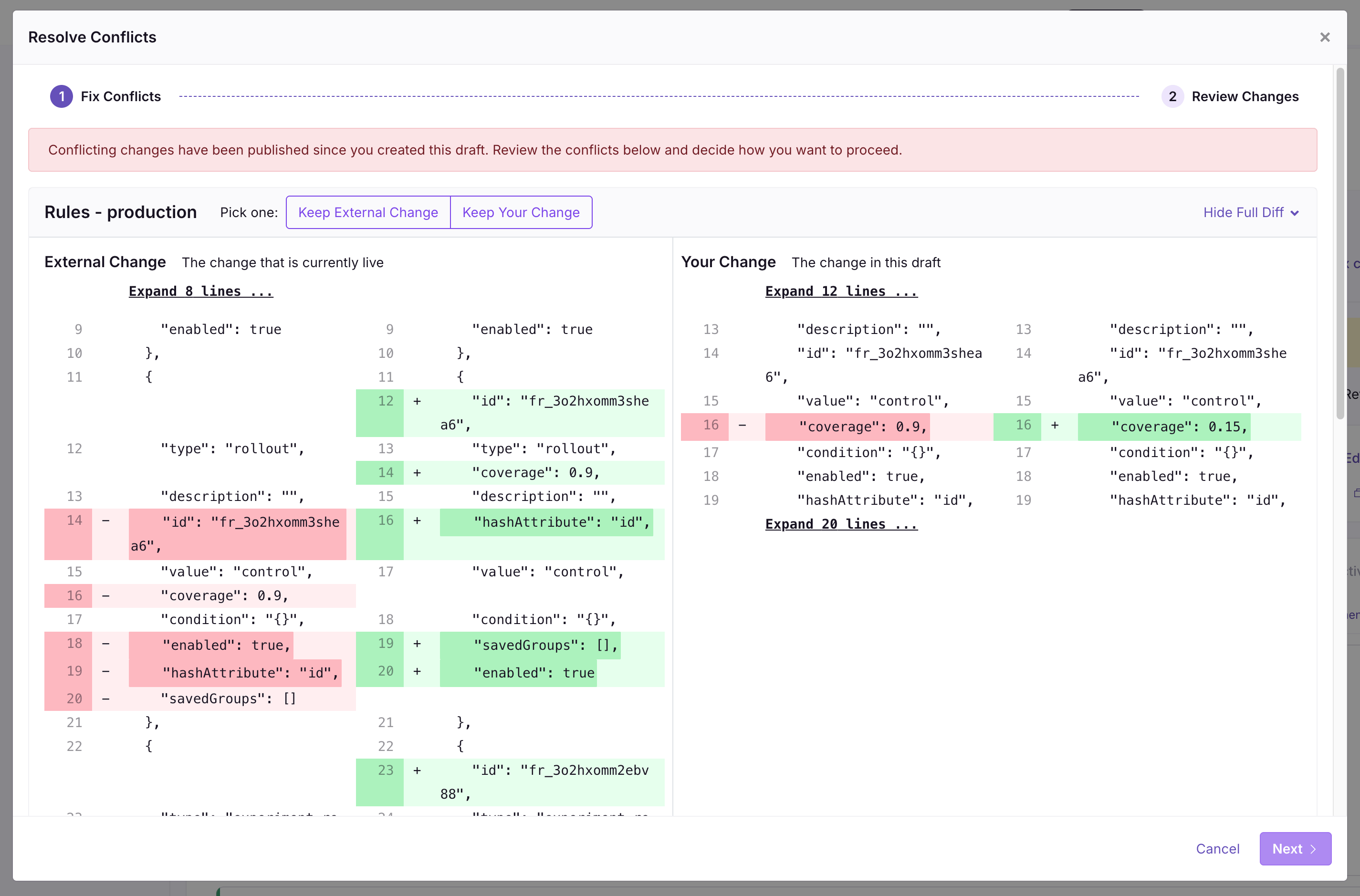
Your draft can diverge from the live version of a feature if someone else publishes changes while you’re still editing. GrowthBook can merge some changes automatically (e.g., if you change a rule in “dev” and someone else changes a rule in “production”). For changes that can’t be resolved automatically, you must fix the conflicts before publishing your draft. The conflict resolution process works similarly to version control systems like Git. For each conflict, GrowthBook shows a diff and lets you choose how to proceed. In the example below, the Default Value was set tofoo when you first created your draft. In your draft, you changed the value to bar. At the same time, someone else published a new version, changing the value to hi!!. So, now you have to choose which change you want to keep.
Approval Flows
With Approval flows, you can require approval before publishing any change to an existing feature flag. Approval flows help reduce errors by making sure changes to features have been viewed and approved by someone else in your organization.Settings
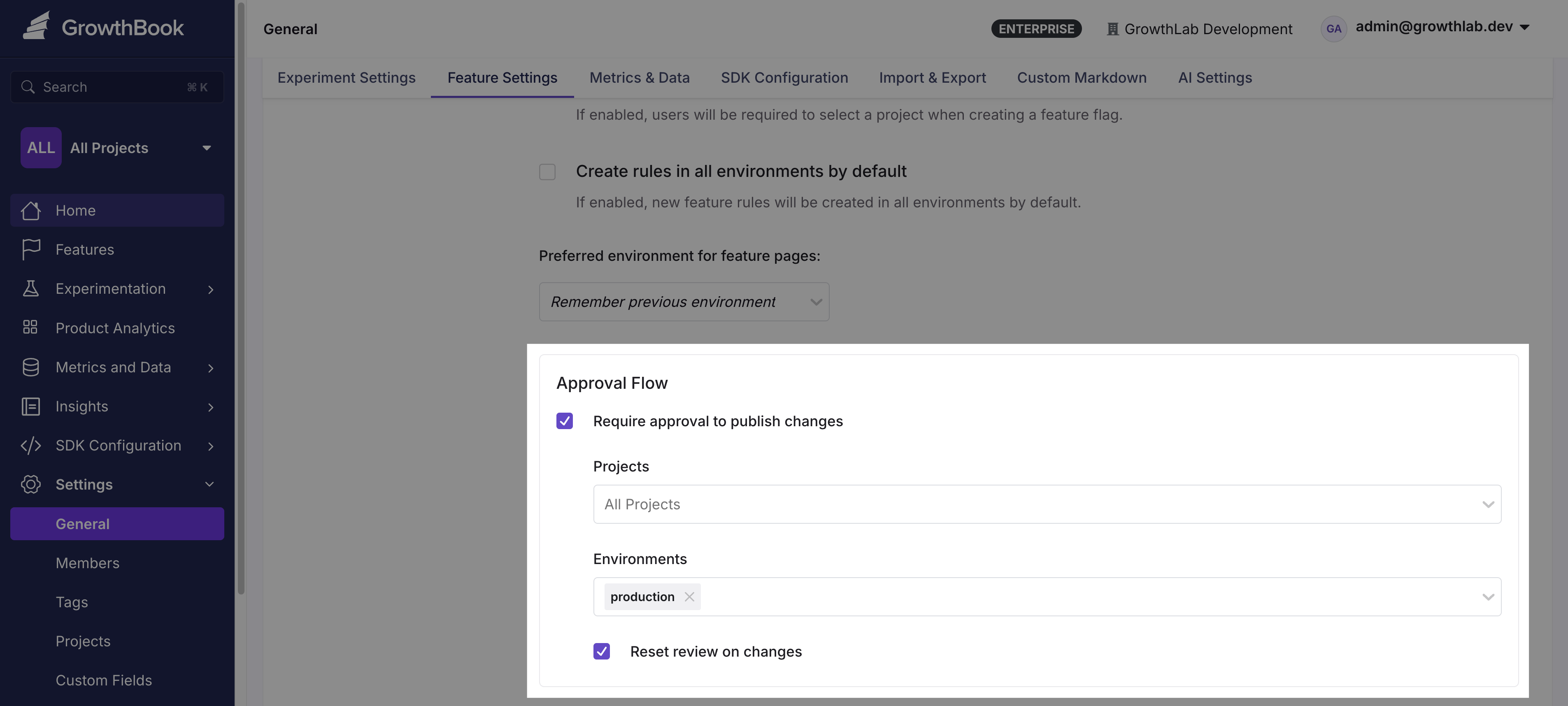
Enable Approval Flows for your organization under Settings → General → Approval Flows. Approval requirements apply per Project: the All Projects tab sets the default rule, and + Project override adds a rule for specific Projects that replaces the default for them. Each Project’s own settings page also shows its effective rule under an Approvals tab. Each rule for Feature Flags, Configs, and Constants has the following options:- Specific environments — Only changes affecting these environments require approval. Leave blank to require approval in all environments.
- Required approver teams — A draft cannot publish until someone from one of these teams approves it. Anyone eligible can still approve alongside them. Leave blank to accept an approval from anyone with Review access.
- Reset review on changes — If a draft is modified after being approved, the approval is revoked and a new review is required before publishing.
- Block contributors from self-approving — Prevents anyone who edited a draft from approving it. The draft’s creator can never approve it, regardless of this setting.
- Allow approve & publish in one step — Adds an “Approve & Publish” option so reviewers with Publish access can approve and publish a draft together.
- Require approval for — Changes to rules, values, and prerequisites always require approval. Optionally also require approval for enabled environment changes (kill switches) and for metadata changes (description, owner, project, tags, etc.).
- Apply approval requirements from Targeting Projects (on by default) — A Feature Flag delivered into other Projects must also satisfy those Projects’ approval rules before publishing. A Targeting Project with a rule of its own must additionally be approved by one of its own reviewers, and those reviewers may review the draft. When off, only the flag’s primary Project’s rules and reviewers apply. Also available on the REST API as
targetingReviewMode.
Environment-scoped approvals
Approvals are environment-aware. An approval only counts for the environments the reviewer can review: if a reviewer’s role (or team) limits their Review permission to specific environments, their approval covers only those environments, and a draft cannot publish until its approvals together cover every environment the draft changes. To set up a separate approver group per environment — for example, one group that signs off onproduction changes and a different group for staging:
- Create a team per environment (Settings → Members → Teams) and give each team a role with the Review permission limited to its environment.
- Add the reviewers to their environment’s team.
- Optionally add both teams to Required approver teams on the approval rule. Because each team can only review its own environment, a
stagingdraft can then only be satisfied by the staging team, and aproductiondraft only by the production team.
staging can never sanction a production change.
Requesting a Review
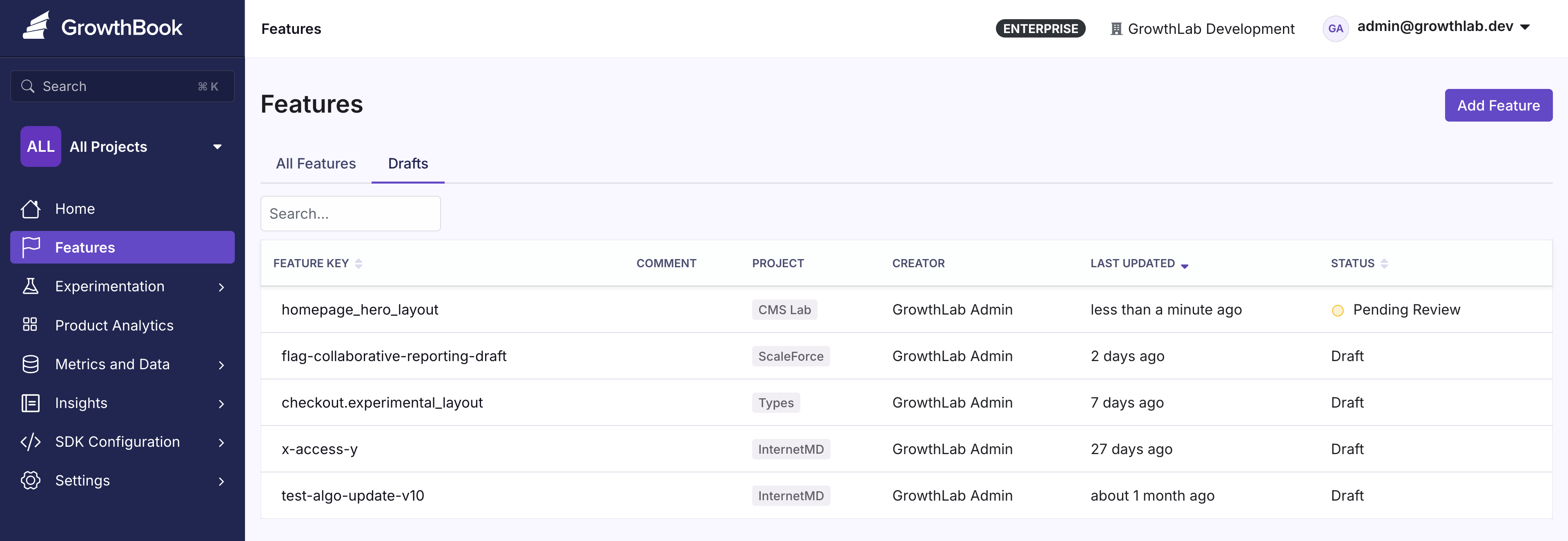
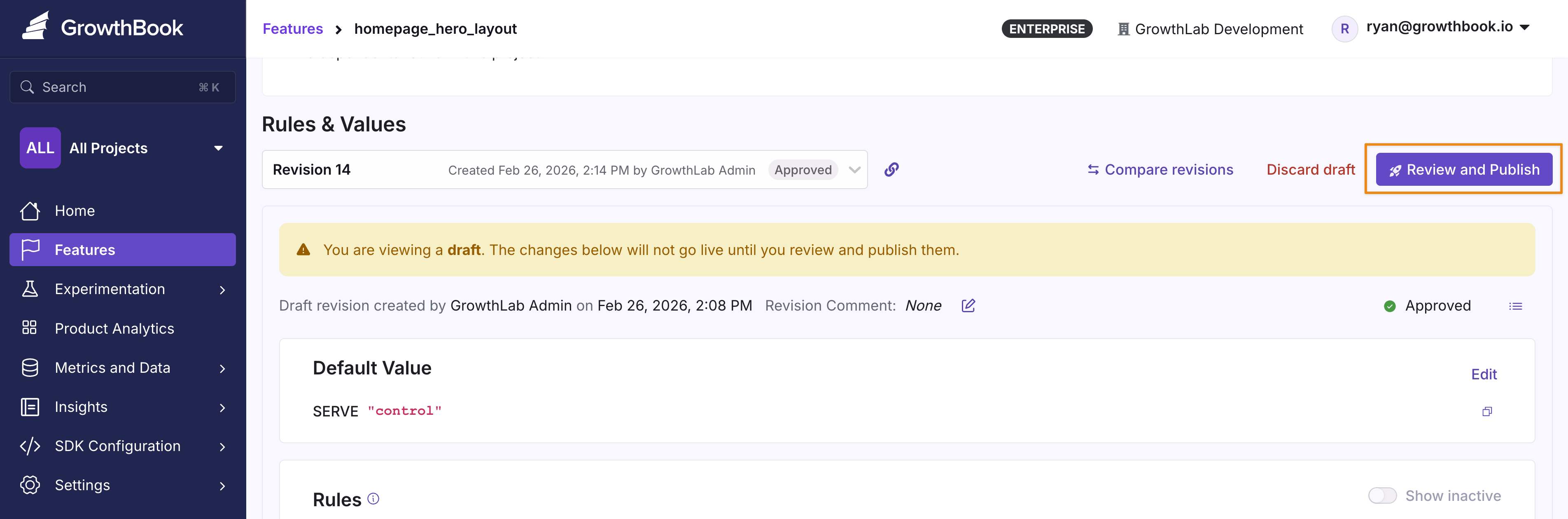
When Approval Flows are enabled, you must request a review before publishing changes. Add a detailed comment describing the changes so reviewers can understand the intent of your request.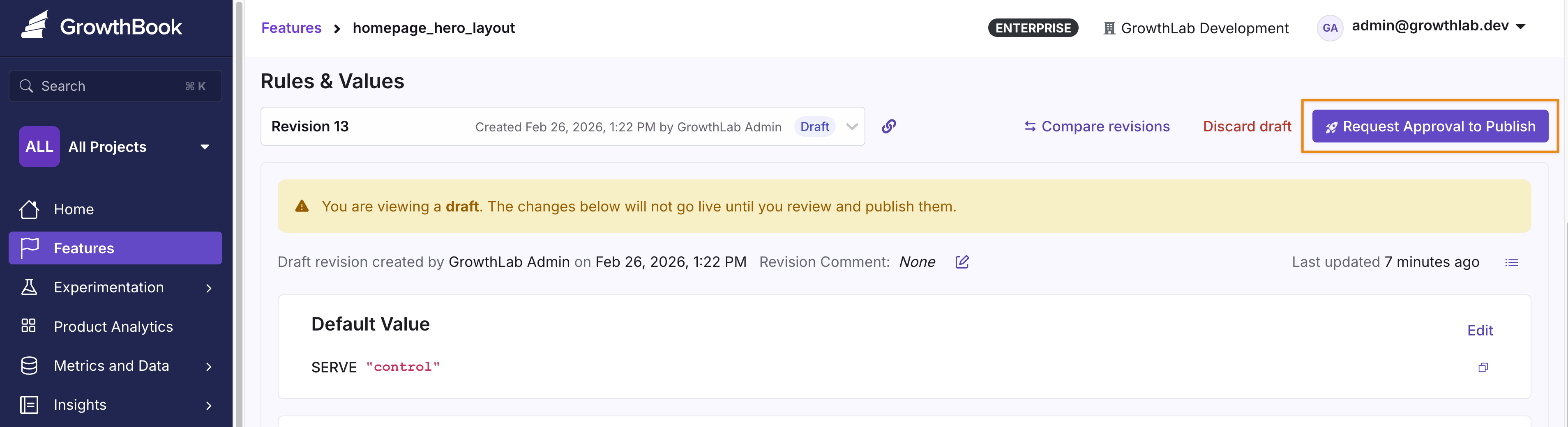
Reviewing
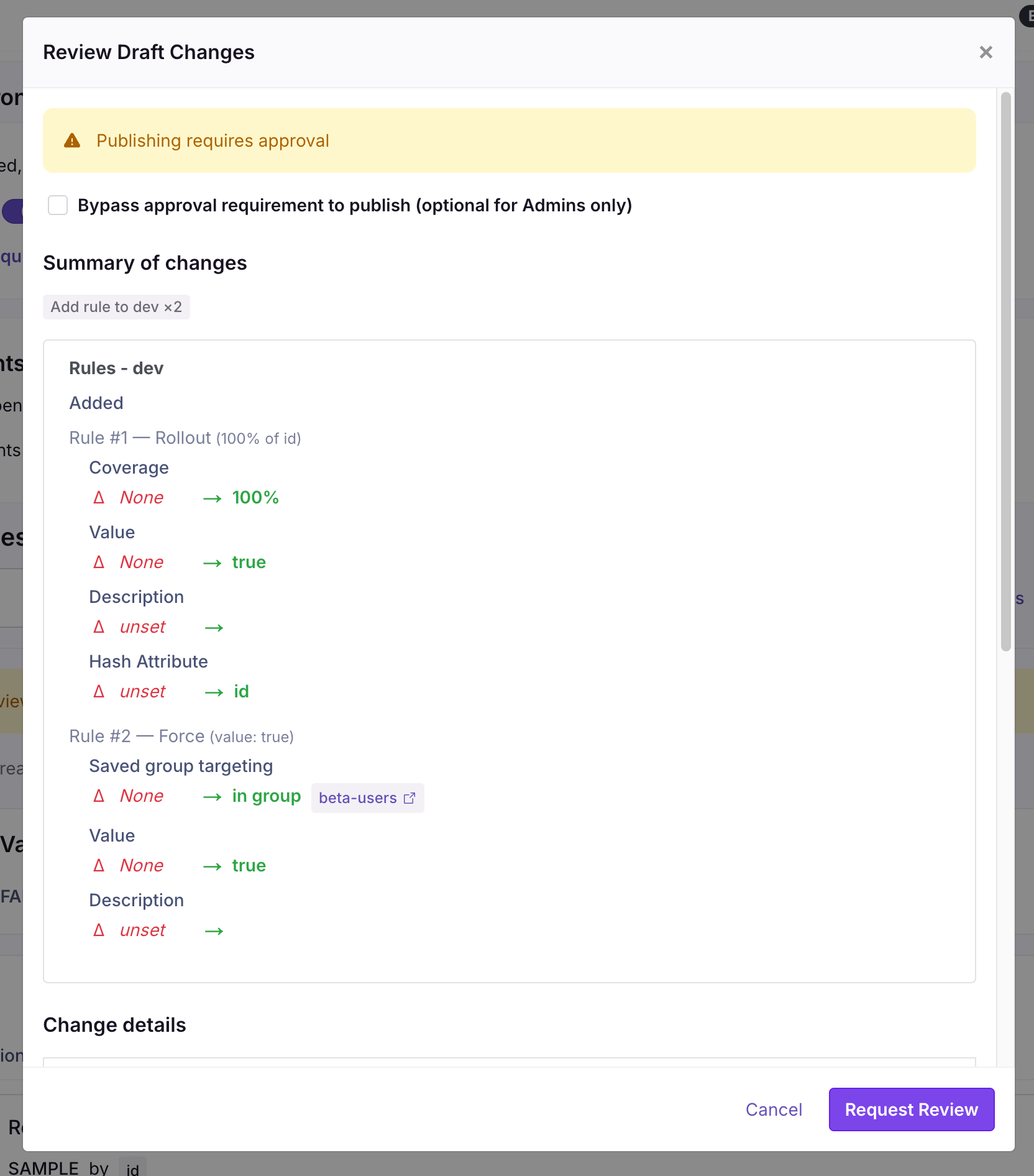
A reviewer needs the Review permission for Feature Flags in the flag’s primary Project, covering the environments the draft changes (see Environment-scoped approvals). When the flag is delivered into a Targeting Project that has an approval rule of its own, that Project’s reviewers may also review the draft; their approval satisfies their own Project’s requirement, not the primary Project’s. The person who created the draft cannot approve it. If Block contributors from self-approving is enabled, anyone who contributed to the draft is also prevented from approving it. See Permissions for details. Click the feature, then click Review and Approve to open the review modal.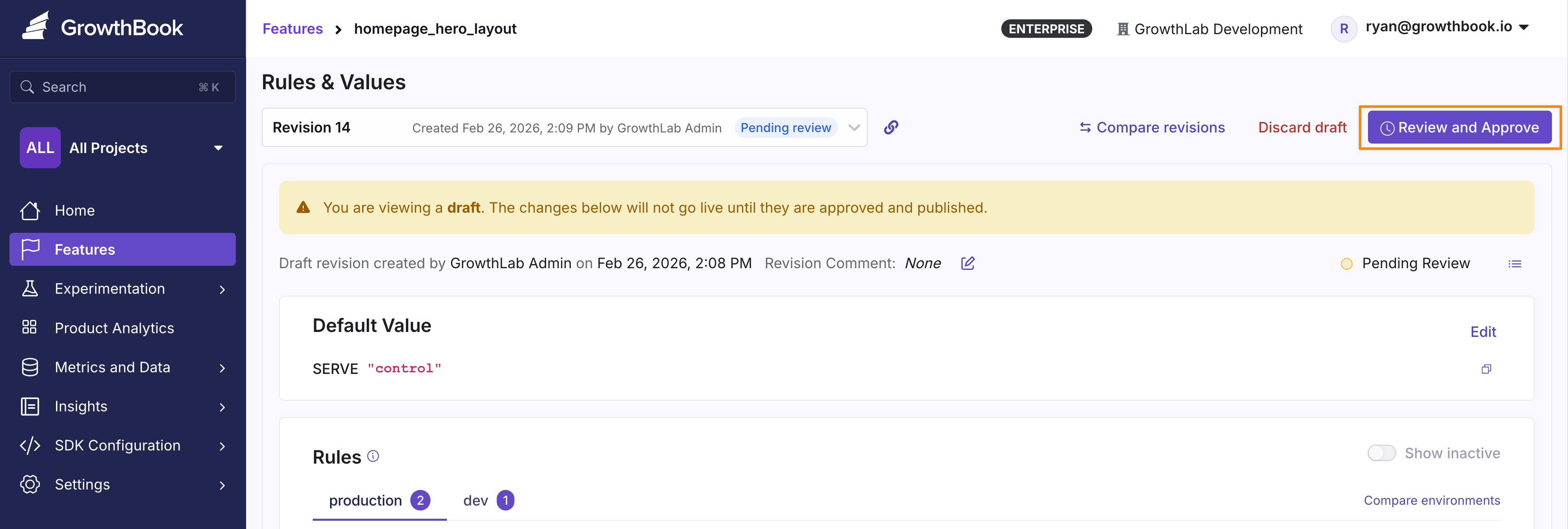
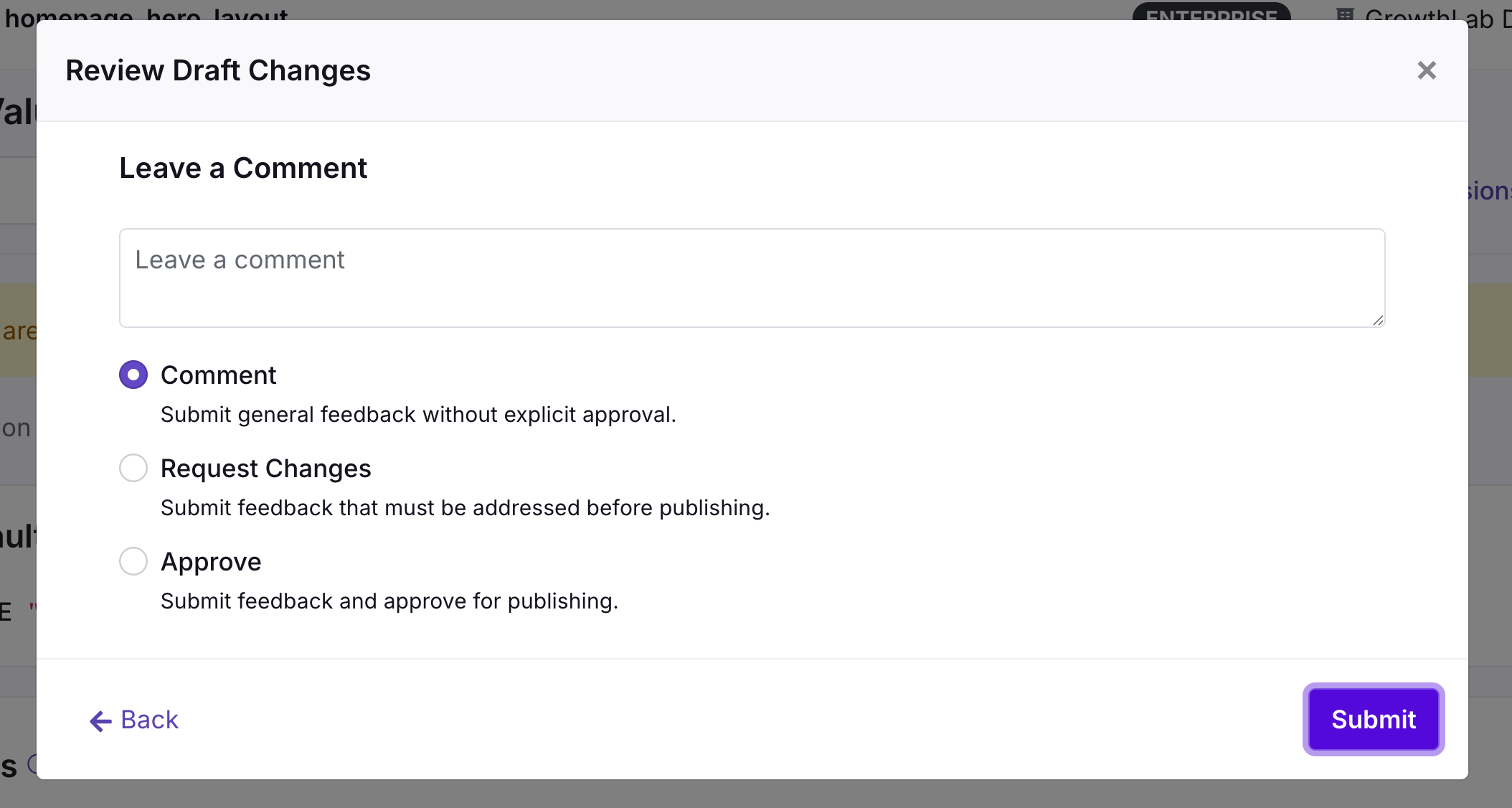
- Comment — Add a note without formally reviewing the changes
- Request Changes — Flag issues that need to be addressed before approval
- Approve — Confirm that everything looks correct
Publishing with Approvals
After approval, anyone with Publish access to the affected environments can publish the draft. If the approval rule lists Required approver teams, the draft additionally cannot publish until a member of one of those teams has approved it. If the flag is delivered into a Targeting Project with an approval rule of its own, the draft also needs an approval from one of that Project’s reviewers. A user with Bypass draft approvals can publish without any of these, and so can API keys when REST API always bypasses approval requirements is on.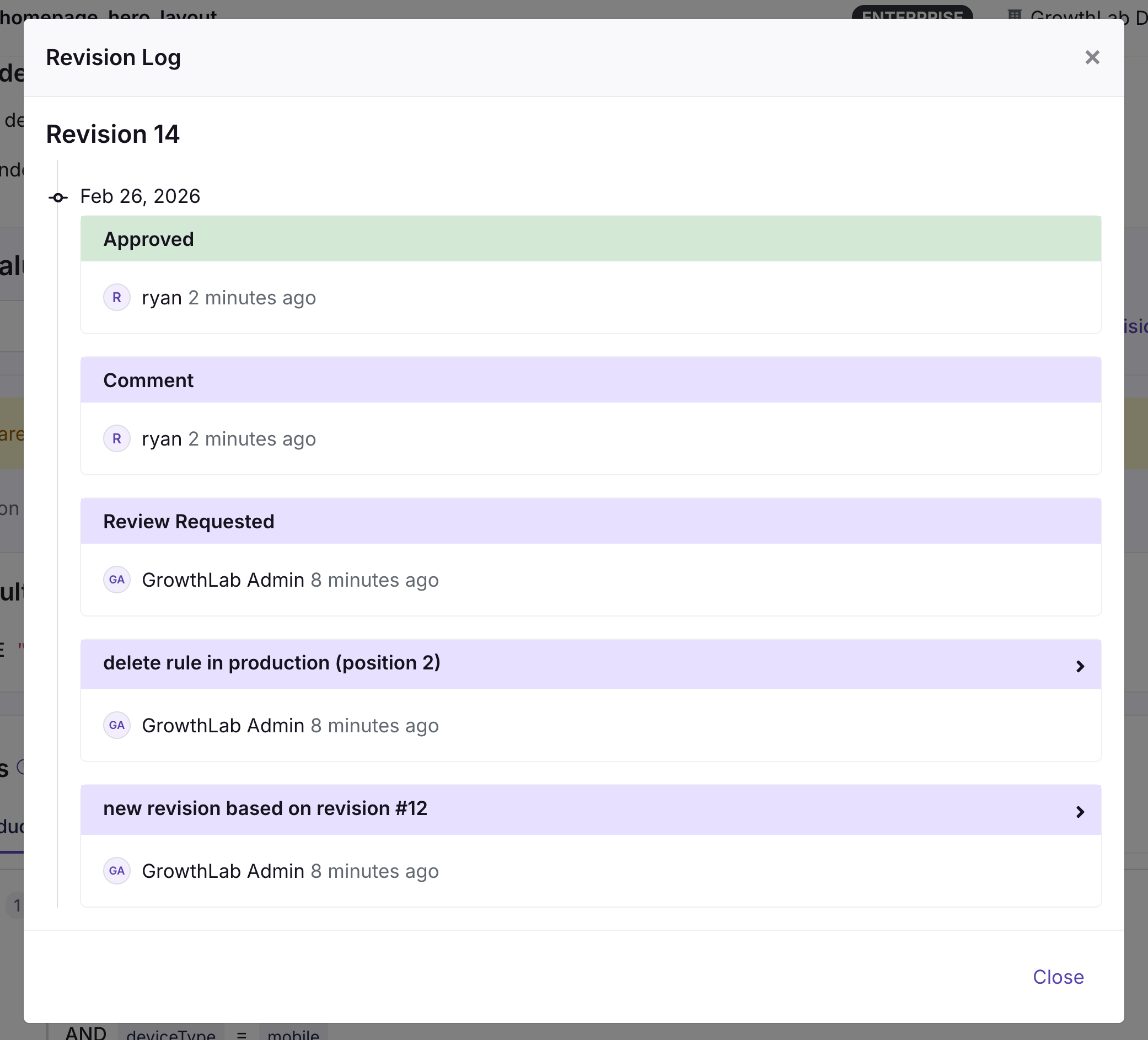

Visualize Changes with Compare Revisions
Get a detailed diff of the changes between published and draft versions by clicking the Compare Revisions button.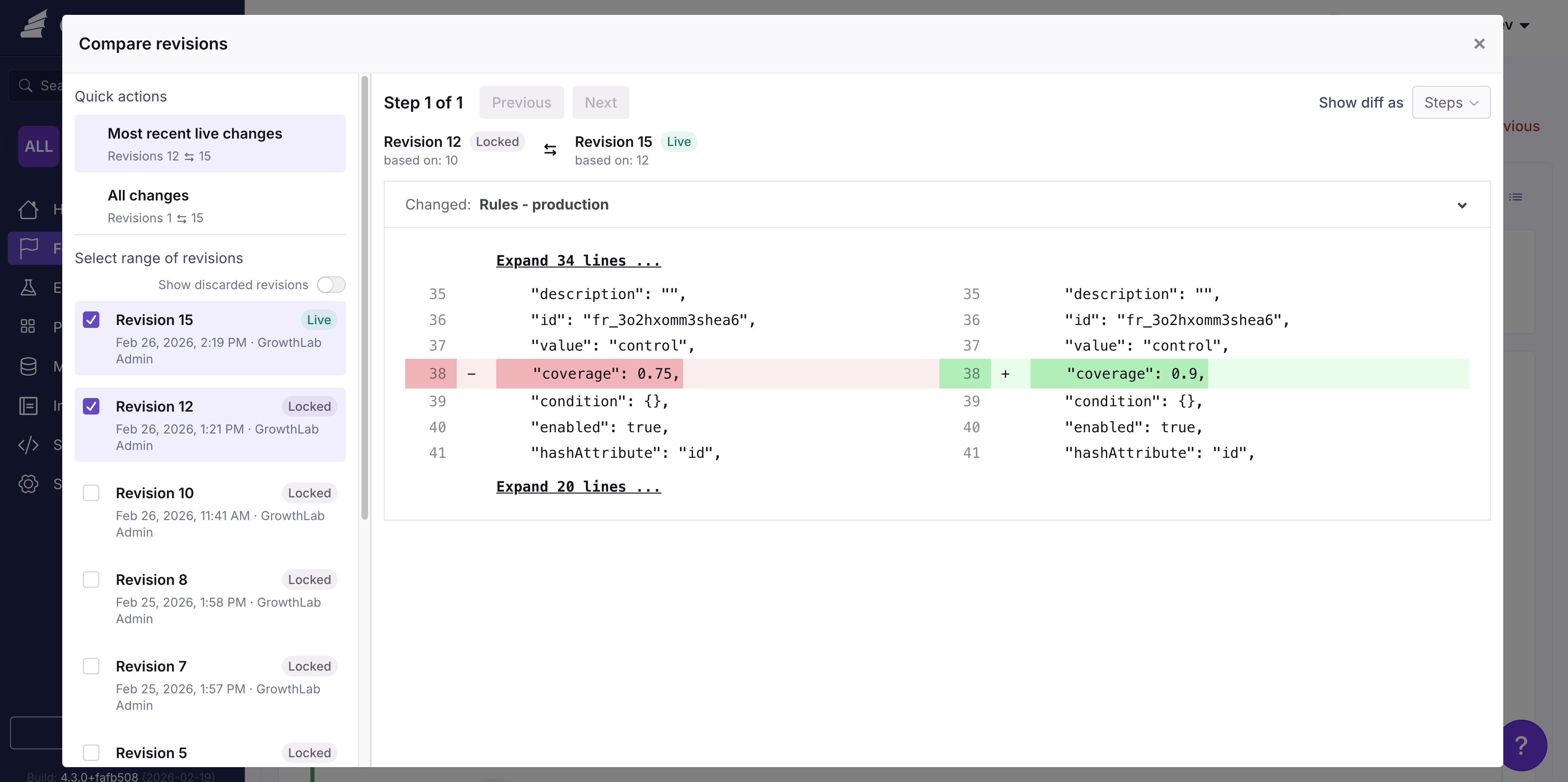
Saved Groups
Saved groups follow the same draft → review → publish lifecycle as feature flags. Every change you make to a saved group — editing values or conditions, updating metadata, or archiving it — is tracked as a revision so you can review, compare, and roll back changes over time.Saved Group Revisions
When you edit a saved group, GrowthBook creates a draft revision. Drafts are visible to everyone with access to the saved group, but they don’t affect SDK evaluations until they’re published — so you can stage and review your changes before they reach your users. From the saved group detail page you can:- Switch revisions — Use the revision dropdown to view the live revision or any open draft. The dropdown shows the author, last update date, and review status for each revision.
- Create a new draft — Click New Draft from the live revision to start a new set of changes.
- Compare revisions — Click Compare revisions to see a side-by-side diff of any two revisions.
- Revert to a previous revision — Open an older merged revision and click Revert to Previous to apply its state as a new draft.
- Discard a draft — Authors can discard their own draft if they no longer want to publish it.
- Fix merge conflicts — If another user publishes changes while your draft is open, click Fix conflicts to resolve them before publishing. The conflict resolution flow works the same way it does for features.
Saved Group Approval Flows
You can require approvals for saved group changes independently from feature flag approvals.Settings
Enable saved group approvals from Settings → General → Approval Flows. The Saved Groups section has its own toggle, separate from the Features section:- Require approval to modify Saved Groups — When enabled, every change to a saved group must be reviewed and approved by someone else before it goes live.
- Required approver teams — A draft cannot publish until someone from one of these teams approves it. Leave blank to accept an approval from anyone with Review access.
- Require approval for — Approval is always required for changes to values and conditions. Use the Metadata changes checkbox to also require approval for edits to the description, owner, project, or tags.
- Reset review on changes — If a draft is modified after it has been approved, the approval is revoked and a new review is required before publishing.
- Block contributors from self-approving — Anyone who edited the draft is blocked from approving it, ensuring a separate reviewer must approve before publishing.
- Allow approve & publish in one step — Adds an “Approve & Publish” option so reviewers with Publish access can approve and publish a draft together.