

1. Install the extension
Install GrowthBook AI Visual Editor from the Chrome Web Store (Chrome, Edge, Brave, Dia, and most Chromium browsers).2. Open the side panel
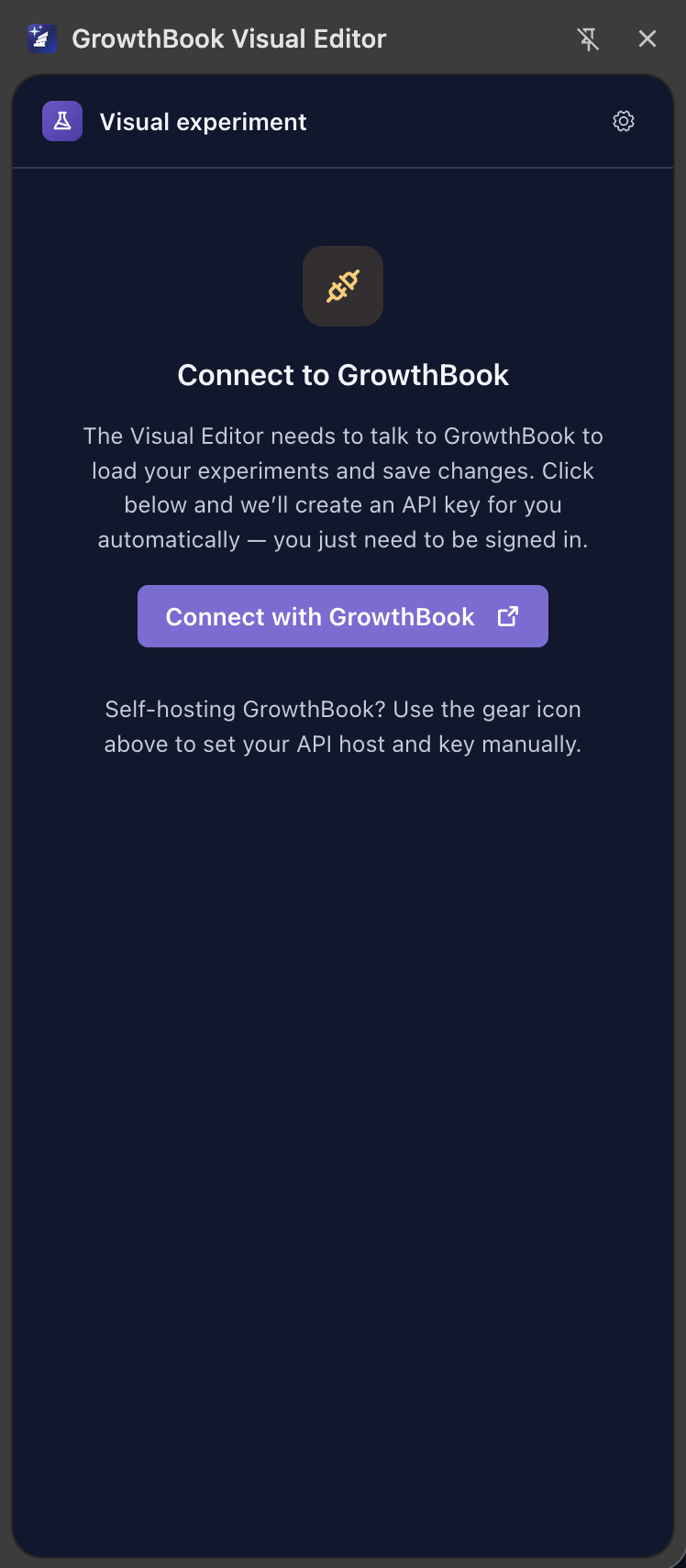
3. Click “Connect with GrowthBook”
Click Connect with GrowthBook. A new tab opens to GrowthBook: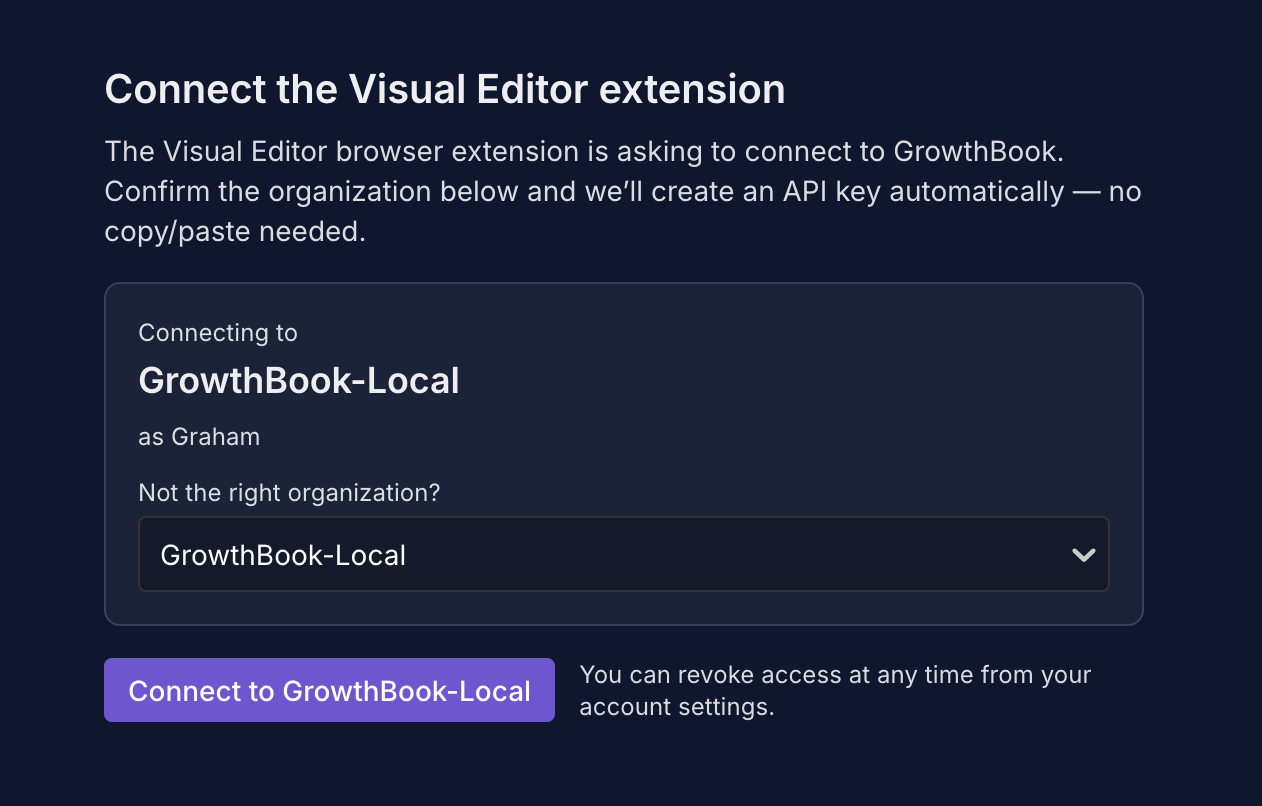
- Already signed in, one org — an AI Visual Editor access key is generated and passed back to the extension automatically. The tab closes; the side panel shows you’re connected.
- Not signed in — log in first, then the flow continues as above.
- Multiple orgs — pick which org to connect to from a dropdown, then the key is generated.
Where the key is stored
The access key is stored in the extension’s local storage on your machine. It’s not synced across browsers, and it’s only sent in theAuthorization header of requests to the GrowthBook API host the extension is configured for.
Self-hosted GrowthBook
The one-click flow works on GrowthBook Cloud and self-hosted instances the extension has synced with before. On a fresh install pointing at self-hosted:- Open the gear menu → API host and set your host (e.g.
https://api.growthbook.ioorhttps://localhost:3100). - Paste a personal access token (or the equivalent on your instance).
- Click Connect with GrowthBook.
4. The gear menu
Once connected, there’s a gear icon in the side panel header. Open it for:- Status — shows whether the extension is connected and whether the editor is targeting the active tab’s domain.
- Language — change the side panel’s language. Independent of your GrowthBook web UI language.
- Dark mode — toggles the side panel’s UI theme. Independent of your GrowthBook web UI theme.
- Change Connection — change which GrowthBook host you’re talking to (e.g., switch from production to staging, or set a self-hosted host) or change the personal access token.
- Disconnect — clear the stored key and return to the disconnected state. Use this when handing off the browser to someone else.
Next steps
- AI mode — write your first variation.
- Running on your site — install the SDK so variations render in production.