

- Multi-property changes (“make this card more premium”) without touching each control
- Change text content without needing to find the right content field in the property panel
- Less technical users who don’t want to think about CSS selectors
Prerequisites
Before AI mode is usable on your account:- An org admin needs to configure an AI provider. Go to Settings → AI in GrowthBook and add an OpenAI, Google, or xAI API key. See AI Integrations for the full setup.
- Your plan must include AI features. AI mode is part of the
ai-suggestionscommercial feature. Pro and Enterprise plans include it; Free does not. - You need to be connected to your GrowthBook account in the AI Visual Editor side panel.
Opening AI mode
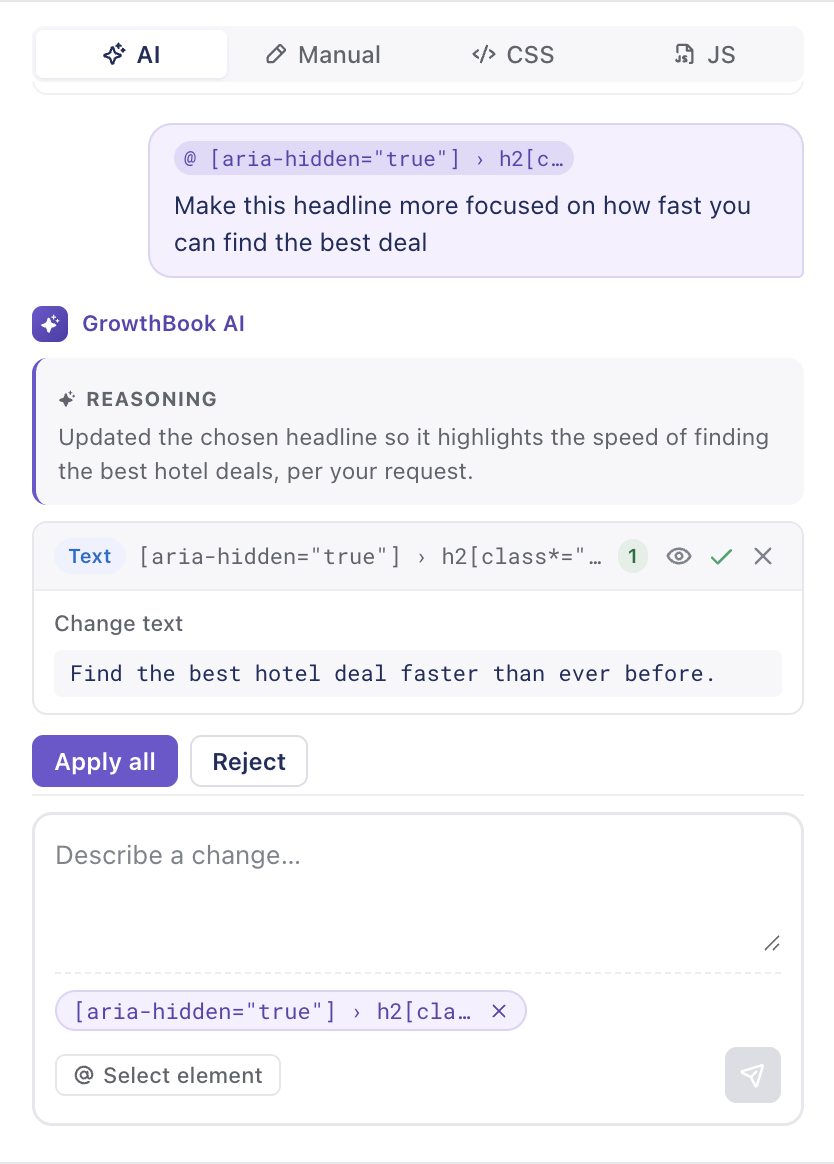
After you open the side panel and target a URL, you’ll see two top-level tabs: AI and Manual. AI is selected by default. The AI panel has three parts:- A prompt box at the top of the panel where you describe what you want.
- A chat log that fills in as you make requests — each turn shows what you asked, followed by an assistant card with the proposed changes.
- The Changes panel at the bottom of the side panel, which lists every change accepted so far for the current variation.
Writing good prompts
The AI does its best work when prompts are concrete about what and where, but loose about how. Good:Change the hero headline to something more urgent and benefit-ledMake the primary CTA button bright green and a little largerHide the secondary nav links on the rightSwap the hero image for one showing a person using a laptop in a coffee shopGive me three alternative headlines for the product card
Make the page better— too vague; the AI will guess and the result will be unfocused.
- Name the element by what it is, not how it’s coded. “The hero headline” works; “.hero h1” rarely needs to be in the prompt.
- Describe intent. “More urgent,” “more premium,” “more playful” gives the AI a direction.
- Ask for variants. “Give me three options” or “draft a few alternatives” produces multiple suggestions in one turn.
- Chain prompts. A second prompt can refine the first (“the green is too neon — make it more muted”).
Adding element context to a prompt
Click Select element (@) below the prompt box, then click an element on the page. It appears as a chip above the prompt — you describe what to change; the chip tells the AI where. Pin multiple elements for batch edits; remove a chip with ×.
Use this when the page has repeated or ambiguous targets (two headlines, identical cards, several “Submit” buttons). Example: pin the hero headline, then prompt “Make it more urgent and benefit-led” instead of “make the headline more urgent”.
For follow-up prompts on the same element without re-pinning, see Multi-turn conversations.
Reviewing proposed changes
When the AI returns, it adds an assistant card to the chat log. The card contains:- A short summary of what was changed and why.
- One or more diff cards — each represents a single DOM change (a text edit, a style change, an attribute change, etc.). The diff card shows the element it targets and what’s being set.
- Accept — the change moves into the Changes panel as part of the current variation.
- Reject — the preview is reverted and the change is dropped.
- Edit — open the change in Manual mode to tweak values before accepting.
Selector grounding
When the AI proposes a change, it picks a CSS selector and validates it against the actual page DOM. If the selector doesn’t match a real element, the change is rejected before it ever reaches you. This matters for two reasons:- Reliability — the AI can’t propose changes against elements that don’t exist or that match nothing.
- Stability — the AI prefers stable selectors (semantic tags, stable classes,
data-*attributes) over brittle ones (positionalnth-childchains, random hash-suffix classes). The variation is more likely to keep working as your site evolves.
Multi-turn conversations
The chat log keeps the full thread for the current variation. You can layer changes:Image generation
If you ask the AI to swap a hero image, generate product imagery, or anything else that requires a new image, AI mode hands off to the image-generation flow. You’ll pick from one or more configured image models, optionally use the existing image as a visual reference, and accept the result into the changeset the same way as any other change. See Images for a full walk-through, including the list of supported image models and which ones accept reference images.What gets sent to the AI
For each prompt, the back-end sends to the configured AI provider:- Your prompt text
- A simplified snapshot of the relevant DOM (typically the elements visible in the viewport, plus any selected element)
- The URL of the page being edited
- Optionally, a small system prompt that biases the model toward stable, accessible changes
Limits and caveats
- Single-page scope. AI mode reasons about the page currently loaded in the AI Visual Editor’s target URL. It can’t propose changes against pages it hasn’t seen.
- Selectors can still drift. Even with selector grounding, large site rewrites or design-system changes can break previously-stable selectors. Run a sanity check on long-running visual experiments after major releases.
- Quality varies by model. The org admin picks the underlying model in AI Settings — bigger/newer models generally produce better proposals at higher cost. The same prompt will produce different output across
gpt-4o-mini,gemini-2.5-pro, andgrok-2. - AI mode is not a substitute for review. Always preview the variation on a real page (and ideally a real preview link) before publishing.
Next steps
- Manual mode — fine-tune accepted changes.
- Preview and QA — preview before publishing.