

Variation isn’t showing on my site
By far the most common issue. The fix is almost always one of:- Refresh the page Sometimes the AI Visual Editor’s changes don’t apply until a hard reload (Cmd-Shift-R) to bust the cache, especially if you had the page open while making changes in GrowthBook.
Include Visual Experimentstoggle is off on the SDK Connection. Visual experiments are stripped from the SDK payload unless this is enabled. Go to SDK Configuration → SDK Connections, edit the connection your site uses, and turn it on.- The SDK isn’t loaded yet when the variation tries to render. Custom JS variations need to wait for the target element — use the
waitForhelper from Manual mode → Custom JavaScript. - URL targeting doesn’t match. The current URL doesn’t satisfy the experiment’s URL targeting rule. Check the rule and verify with the Debug Panel.
- The experiment is still a draft and the SDK Connection doesn’t have Include Drafts enabled. Draft experiments aren’t delivered by default.
Preview link returns the control
You’re hitting?experiment-id=1 but seeing variation 0. In order of likelihood:
- The experiment is a draft and Include Drafts is off on the SDK Connection. Toggle it on, then hard-reload (Cmd-Shift-R) to bust the SDK cache.
- Wrong client key. Your site is loading a different SDK Connection than the one the experiment is associated with. Check the SDK Connection in GrowthBook against the client key in your site’s source.
- CDN or browser cache is serving the pre-querystring version of the page. Hard-reload, or test in a private window.
- URL targeting excludes this URL. Even with the querystring, the SDK won’t run the experiment on URLs that don’t match the targeting pattern.
Element selector picks the wrong thing
When you hover an element, the blue highlight selects an ancestor or sibling instead of what you wanted: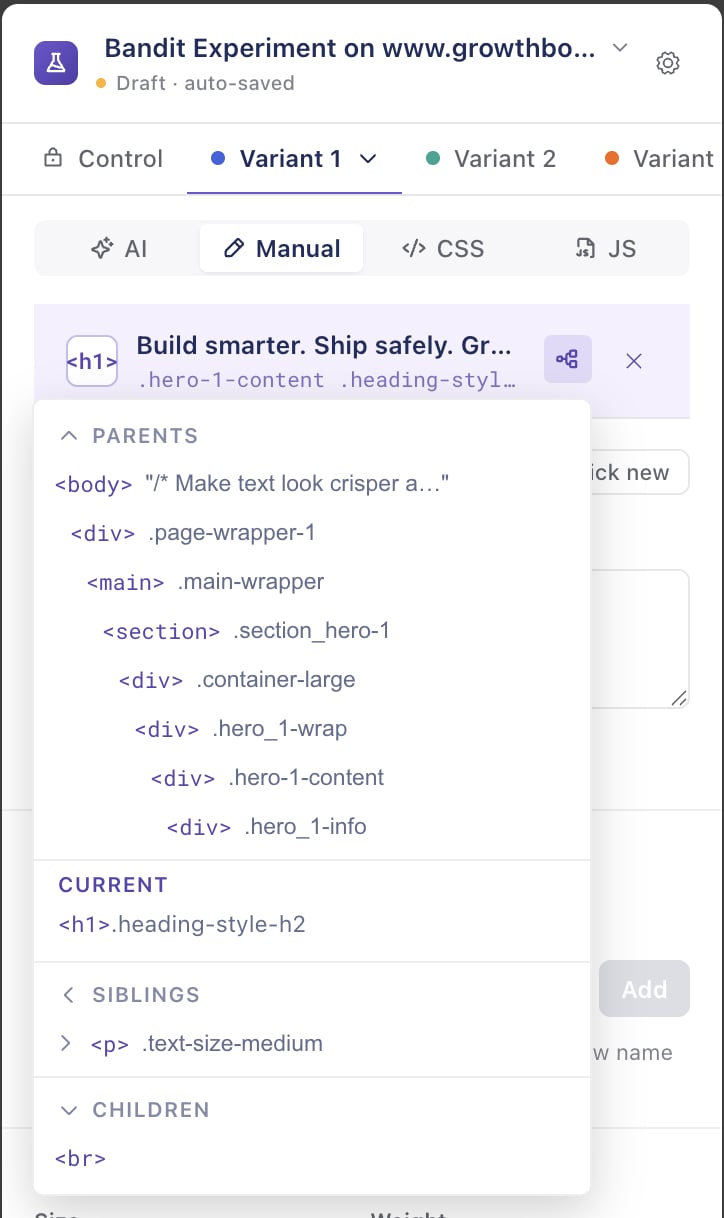
- Use the tree selector. Click the tree icon in the selected-element bar to open a small view of the surrounding DOM, then click the exact ancestor or child you want. This is the most reliable way to land on the right node. See Picking an element.
- Cycle through stacked elements. For elements sitting on top of each other (z-index), the picker grabs the topmost. Hold a modifier key (Alt on macOS, Shift on Windows) while clicking to select the ones underneath.
- Keep interactive elements open. Dropdowns and hover menus close as soon as you move the mouse to the side panel. Use the Interactive Mode toggle to keep them open while you select.
- Override the selector directly. In the Advanced section you can type or refine the CSS selector by hand — useful when no amount of clicking lands on the element, or when you want a more durable selector. See Detailed Selector.
Changes flicker on page load (FOOC)
A “flash of original content” happens when the SDK applies the variation a moment after the page renders the control. Mitigations:- Load the SDK as early as possible. Place the
<script>tag in<head>, not at the bottom of<body>. - Use the Script Tag SDK — it’s optimized to apply variations before paint when possible.
- Avoid heavy
before-rendercustom JS. The SDK has to wait for it. - For server-rendered sites, consider an Edge SDK to apply visual changes at the CDN before HTML reaches the browser. This eliminates FOOC entirely.
The page freezes or becomes unresponsive while editing
Some elements aren’t plain HTML — they’re rendered and owned by the site’s JavaScript framework (React, Next.js, Vue, Svelte, etc.). When you edit one, the AI Visual Editor applies your change, the framework re-renders the element and overwrites it, the editor re-applies, the framework reverts again — and the two can spin the browser’s main thread until the page becomes unresponsive. The editor detects this loop and steps in before the page freezes. What happens next depends on the change:- Style changes are fixed automatically. Color, size, spacing, borders, visibility, and other styling are re-delivered as global CSS — a CSS rule re-matches the element on every render instead of being overwritten, so it beats the framework without a fight. These just work (you’ll find them in the variation’s global CSS); nothing to do.
- Content and structural changes can’t be. Text, HTML, and attribute changes have no CSS equivalent, so the editor stops previewing the change (to stay responsive) but keeps it saved — the loop can be specific to the editor (dev/staging builds re-render far more than production, and you’re interacting with the page while editing), so the change may still work when the SDK applies it once on your live site. When you see the notice:
- Verify with a preview link on your live site. The editor can’t tell an editor-only loop from a real one, so confirm whether the change actually holds for users before relying on it.
- Target a nearby static element — one the framework doesn’t re-render. Use the tree selector to look for a stable parent or child. (An adjacent element isn’t guaranteed to be static — much of a modern app’s DOM is framework-controlled, so this doesn’t always help.)
- Use a feature flag instead. When the site’s own code renders the content, a code-level change is the right tool — the AI Visual Editor is fighting the framework for ownership of that element.
- As an escape hatch, Custom JS with a
waitFor/MutationObserverhelper can re-apply the change, though the framework may still overwrite it. See Custom JavaScript.
Image upload didn’t replace the picture
Modern responsive images usesrcset and <picture> markup. If a plain src replacement doesn’t show up:
- The AI Visual Editor should be removing
srcsetautomatically — check the Changes panel for an attribute-removal change next to the image change. - If it didn’t, the target element might be nested in markup the picker didn’t recognize as a
<picture>. Try selecting the parent<picture>element directly. - See Images →
<picture>andsrcsethandling.
AI mode is greyed out / not available
AI mode requires:- An AI provider key configured by an org admin in Settings → AI. See AI Integrations.
- A plan that includes the
ai-suggestionscommercial feature. Free plans don’t include AI. - An active connection in the side panel — sign in if you’ve been signed out.
Extension can’t connect to my self-hosted GrowthBook
- Confirm the API host URL. Use your API host, not your front-end host. They’re usually different (e.g.,
api.example.comvs.app.example.com). - Confirm HTTPS. Chrome blocks extension requests to HTTP hosts and to HTTPS hosts with invalid certs. Use a real TLS cert.
- Test the API from
curlfirst withAuthorization: Bearer <PAT>. Ifcurlfails, the host or token is the problem. Ifcurlworks but the extension doesn’t, your browser’s network environment (proxy, VPN, split-DNS) is blocking extension requests. - CORS — your API host’s CORS configuration must allow the extension’s origin. The extension uses
chrome-extension://<extension-id>as its origin.
”Wrong domain” banner won’t go away
The AI Visual Editor scopes itself to the URL you set when creating the experiment. If you’ve moved to a different domain in the active tab, changes are paused intentionally.- Switch the active tab back to the experiment’s target URL.
- Or update the experiment’s target URL in GrowthBook to match where you actually want to edit.
Changes apply to the wrong variation
- Check the variation switcher above the property groups. It’s easy to make changes to v2 thinking you’re on v1.
- The control is read-only — if you can’t make changes, you’re probably on the control tab. Switch to one of the variants.
JavaScript changes seem to apply to every variant
This is an editor-preview artifact — it doesn’t happen for real users. When you add or Run Custom JS, the script executes on the live page so you can preview it. CSS and DOM/text changes are cleanly undone when you switch variants, but arbitrary JavaScript can’t be automatically reversed — once a script has run it may already have created elements, attached listeners, or changed page state. Switching variants in the editor doesn’t “un-run” it, so the page shows the combined effect of every script you’ve run since the last page load. Real users only ever see one variant — each visitor is bucketed into a single variation and loads only that variation’s JS. They never experience the stacking you see while flipping between variants in the editor. To preview one variant cleanly:- Reload the page, then open the variant you want. A fresh load runs only that variant’s JS. (The editor prompts you to reload after you change a JS block, since JS can’t be hot-swapped in place.)
- Use Run to re-execute the current variant’s JS after editing it — Custom JS runs once per page load, not reactively.
- To be sure no leftover side effects remain, hard-reload (Cmd/Ctrl-Shift-R).
waitFor helper — see Custom JavaScript.
Save fails with “permission denied”
Your Personal Access Token’s user account doesn’t have permission to edit this experiment. Check:- Project permissions. Your user role might be limited to a subset of projects, and this experiment lives in a different one.
- Experiment ownership. Some orgs restrict editing to experiment owners or members of the assigned team.
- PAT scope. Re-create the PAT if it was generated under an older account state.
Still stuck?
- Share the Debug Panel screenshot when filing a support ticket — see Preview and QA → The debug panel.
- Reach out in the GrowthBook community Slack or via support.
Next steps
- Preview and QA — preview links, debug panel, live-experiment warning.
- AI Visual Editor overview — back to the main page.